

Home Screen
The HITL.sh mobile app home screen is your central hub for managing review requests on the go. Designed for efficiency and ease of use, it provides quick access to all the information you need to make informed decisions.Home Screen Overview
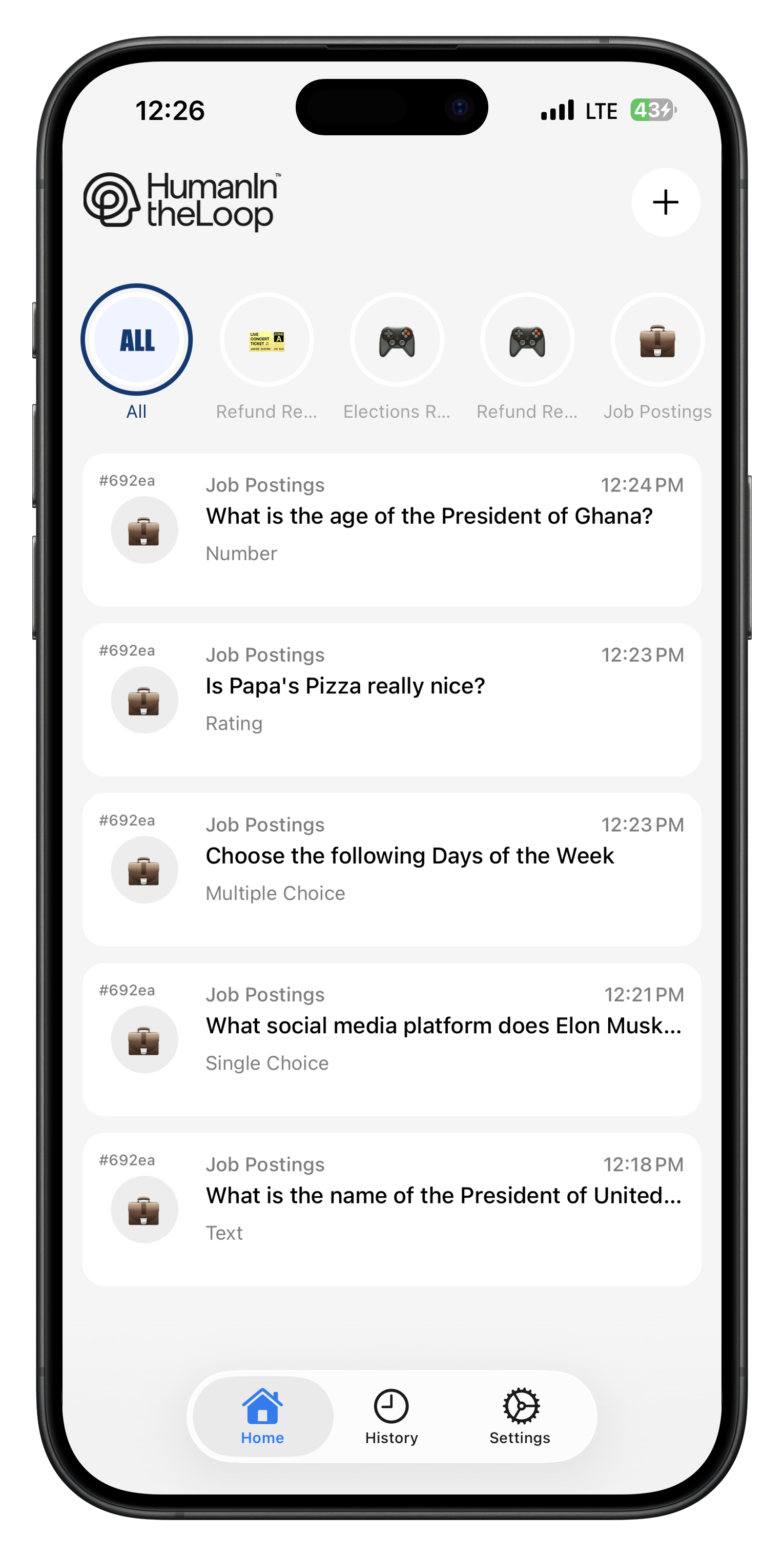
- Header Section: Quick stats and navigation menu
- Request Queue: List of pending requests requiring your review
- Quick Actions: Common tasks and shortcuts
- Status Indicators: Visual cues for request priority and status
Header Section
Profile and Stats
Profile
Quick Stats
Navigation Menu
Access all app features from the main menu:Home
Home
Return to the main dashboard with pending requests.
My Requests
My Requests
View all requests assigned to you, including completed ones.
Team Overview
Team Overview
See team performance and workload distribution.
Settings
Settings
Configure notifications, preferences, and account settings.
Request Queue
Pending Requests List
The main section displays all requests waiting for your review:Request Cards
Request Prioritization
Requests are automatically sorted by:1
Priority Level
Urgent requests appear at the top of the queue.
2
Response Time
Requests approaching their deadline are highlighted.
3
Your Expertise
Requests matching your skills are prioritized.
4
Queue Position
First-in, first-out ordering for equal priority requests.
Request Status Indicators
Visual cues help you quickly understand request status:Priority Colors
Status Icons
Quick Actions
Review Actions
Common actions available from the home screen:Start Review
Batch Review
Mark for Later
Request Help
Filtering and Search
Find specific requests quickly:Content Type Filter
Content Type Filter
Filter by text, image, video, or document requests.
Priority Filter
Priority Filter
Show only high-priority or urgent requests.
Search Function
Search Function
Search requests by content, user, or keywords.
Date Range
Date Range
Filter requests by submission date or deadline.
Request Details
Quick Preview
Tap on any request card to see more details: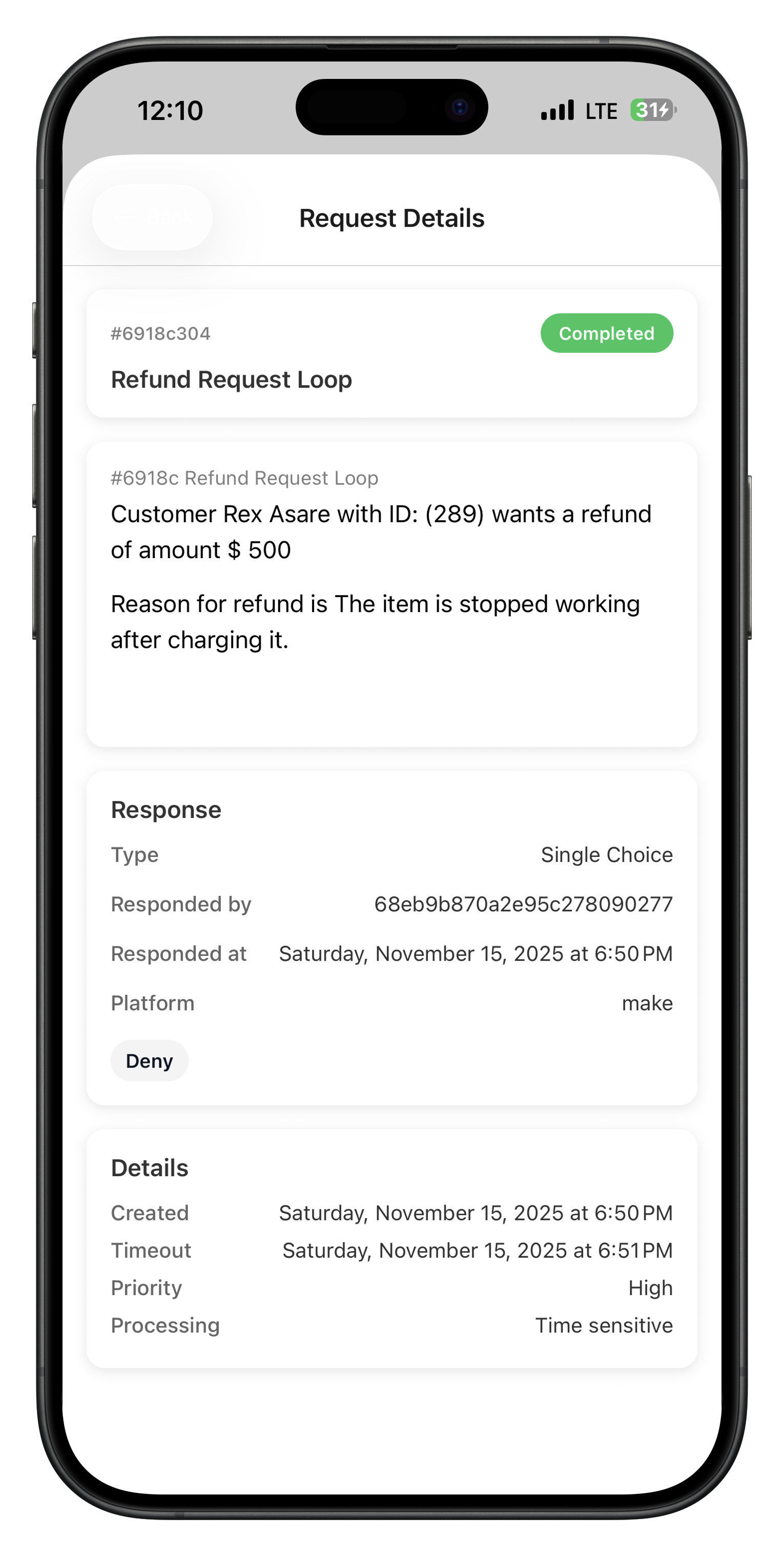
- Full Content: Complete text, image, or video
- AI Analysis: Confidence scores and flagged issues
- Context: User information, submission time, source
- History: Previous similar requests and decisions
Quick Decision
Make decisions directly from the preview:Approve
Reject
Needs Changes
Escalate
Notifications
Push Notifications
Stay informed about new requests and deadlines:Notification Types
Notification Settings
Customize your notification preferences:Request Notifications
Request Notifications
Choose when to receive new request alerts.
Deadline Alerts
Deadline Alerts
Set how far in advance to warn about deadlines.
Team Updates
Team Updates
Receive notifications about team activities.
Quiet Hours
Quiet Hours
Set times when notifications are silenced.
Performance Tracking
Personal Metrics
Monitor your review performance:Response Time
Quality Score
Volume Metrics
Skill Development
Team Insights
View team performance and workload: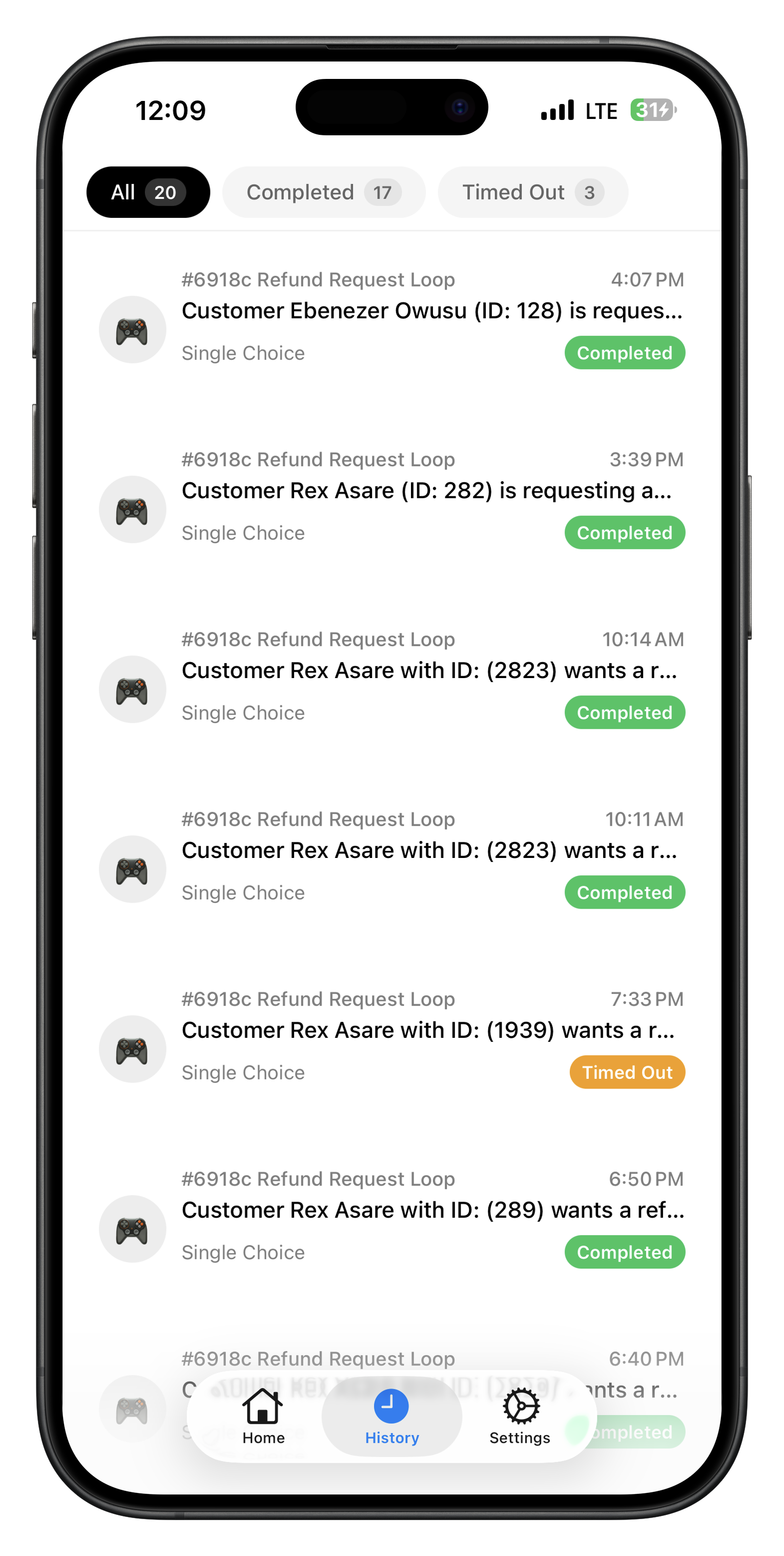
- Overall Workload: Total pending requests across the team
- Response Times: Team average response times
- Quality Metrics: Team decision consistency
- Workload Balance: Distribution of requests across reviewers
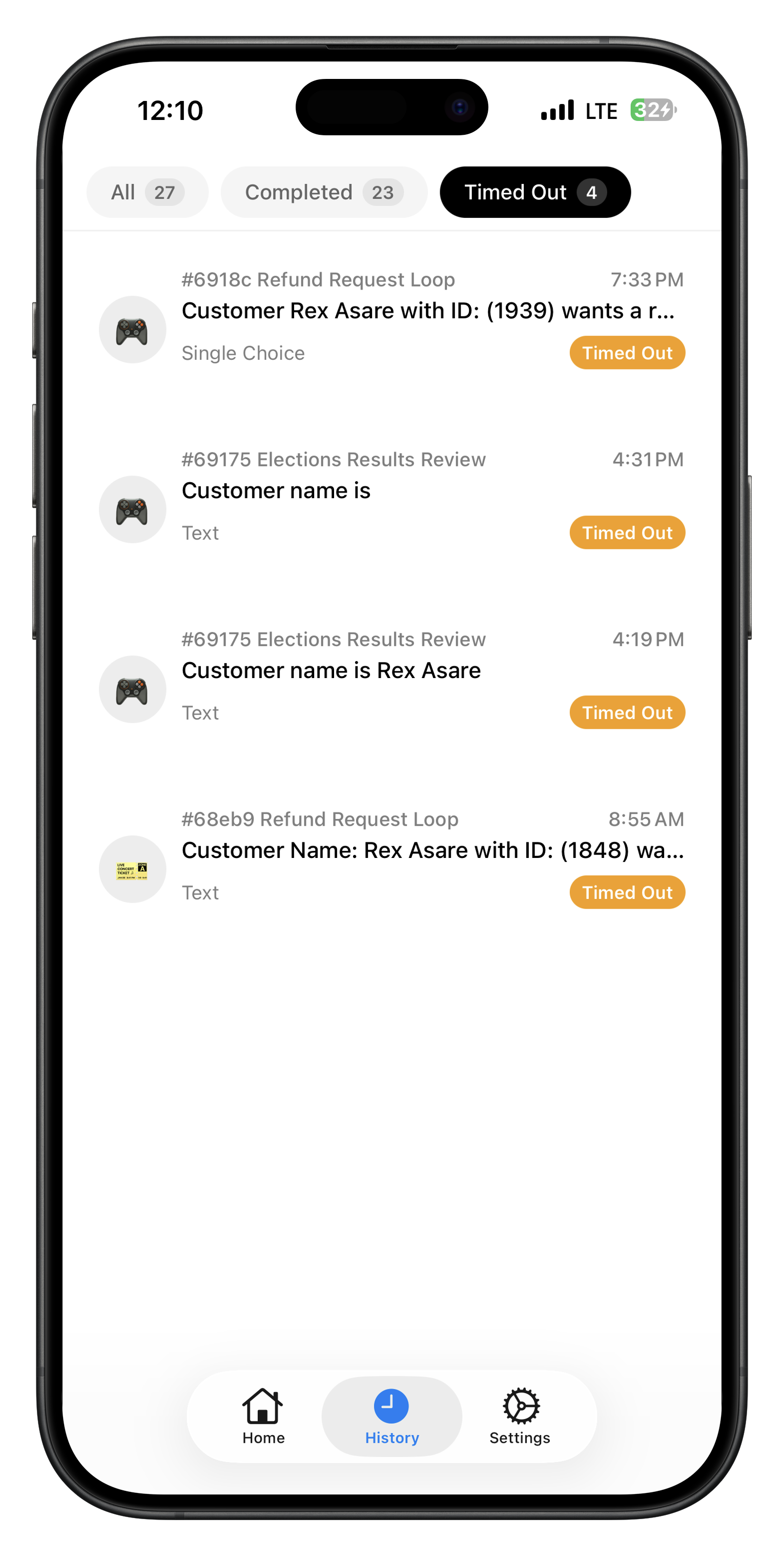
Request History Tabs
- Completed Requests
- Timed Out Requests

Best Practices
Efficient Reviewing
1
Regular Check-ins
Check the app regularly to maintain consistent response times.
2
Priority Management
Focus on high-priority requests first to meet deadlines.
3
Batch Processing
Group similar requests for more efficient review.
4
Quick Decisions
Use quick decision options for straightforward requests.
Quality Assurance
Thorough Review
Consistent Standards
Clear Reasoning
Ask for Help
Troubleshooting
Common Issues
App Not Loading
App Not Loading
- Check internet connection
- Restart the app
- Update to latest version
- Clear app cache
Notifications Not Working
Notifications Not Working
- Check notification permissions
- Verify notification settings
- Restart device
- Reinstall app if needed
Request Not Updating
Request Not Updating
- Pull to refresh the request list
- Check internet connection
- Log out and back in
- Contact support if persistent