> ## Documentation Index
> Fetch the complete documentation index at: https://docs.hitl.sh/llms.txt
> Use this file to discover all available pages before exploring further.
# Responding to Requests
> Complete guide to providing effective responses to review requests in the HITL.sh mobile app across all response types
# Responding to Requests
Providing quality responses is at the heart of the HITL.sh review process. This guide walks you through how to effectively respond to different types of review requests using the mobile app, ensuring your feedback is valuable and actionable.
## Getting Started with Responses
### Accessing Requests
When you receive a new request, you'll be notified through the app:
 **Ways to Access Requests:**
* **Push Notifications**: Tap the notification to open the request directly
* **Home Screen**: Select any request from your pending queue
* **Request History**: Access previous requests from the history tab
* **Direct Links**: Follow shared request links from team members
### Understanding Request Details
Before responding, carefully review the request information:
* **Request Type**: The kind of content you're reviewing
* **Priority Level**: Urgency and importance indicators
* **Context**: Background information and specific instructions
* **Response Type**: How you should structure your response
* **Deadline**: Time remaining to provide your response
## Response Types Overview
HITL.sh supports six different response types, each optimized for specific review scenarios:
Free-form detailed feedback and explanations
Choose one option from predefined choices
Select multiple relevant options
Provide numeric ratings on customizable scales
Enter specific numeric values with validation
Make simple yes/no or true/false decisions
## Text Responses
Perfect for detailed feedback, explanations, and qualitative assessments.
### Text Response Interface
**Ways to Access Requests:**
* **Push Notifications**: Tap the notification to open the request directly
* **Home Screen**: Select any request from your pending queue
* **Request History**: Access previous requests from the history tab
* **Direct Links**: Follow shared request links from team members
### Understanding Request Details
Before responding, carefully review the request information:
* **Request Type**: The kind of content you're reviewing
* **Priority Level**: Urgency and importance indicators
* **Context**: Background information and specific instructions
* **Response Type**: How you should structure your response
* **Deadline**: Time remaining to provide your response
## Response Types Overview
HITL.sh supports six different response types, each optimized for specific review scenarios:
Free-form detailed feedback and explanations
Choose one option from predefined choices
Select multiple relevant options
Provide numeric ratings on customizable scales
Enter specific numeric values with validation
Make simple yes/no or true/false decisions
## Text Responses
Perfect for detailed feedback, explanations, and qualitative assessments.
### Text Response Interface
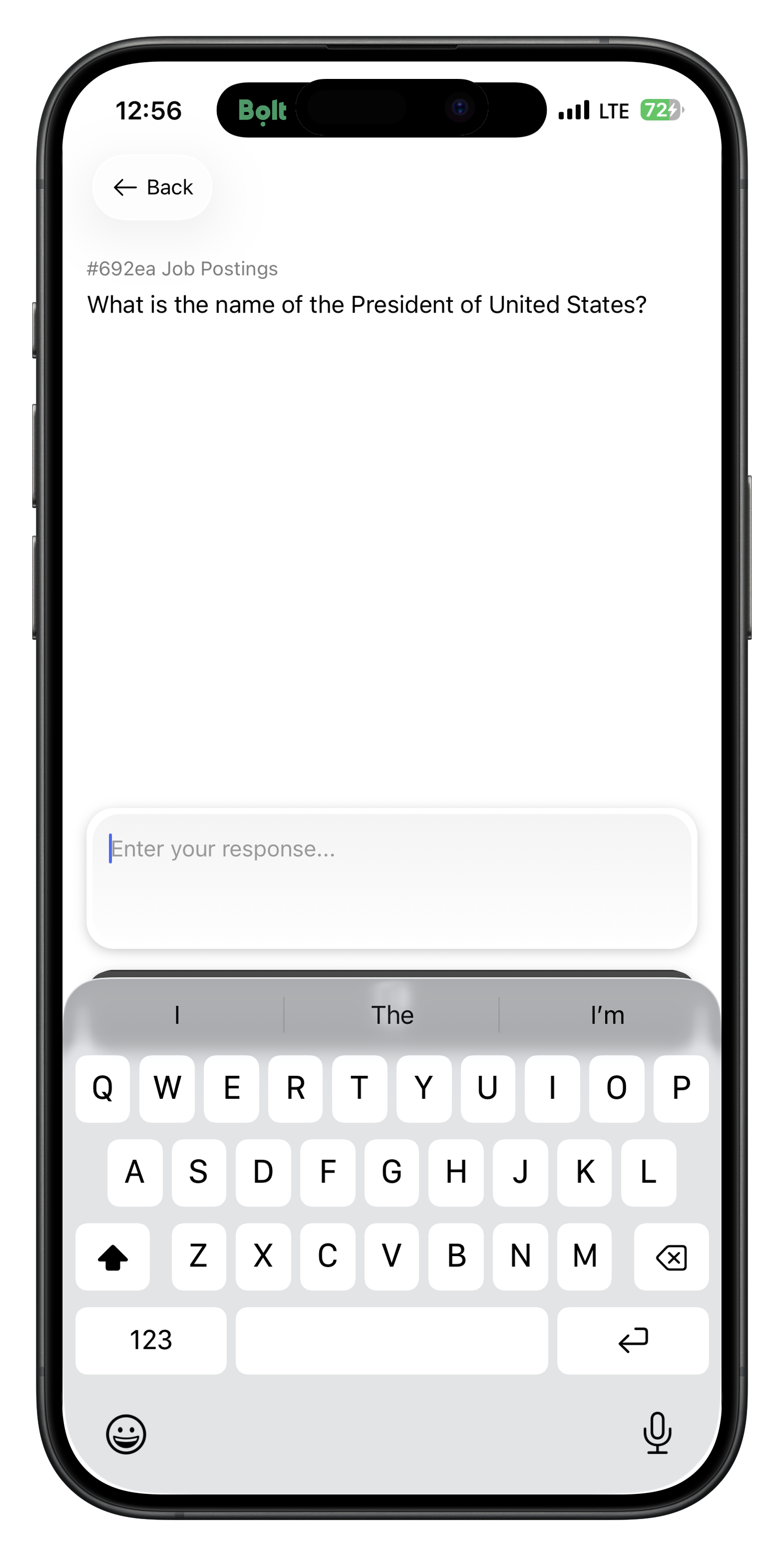 **Text Response Features:**
* **Character Counter**: Shows remaining characters in real-time
* **Placeholder Guidance**: Helpful hints about what to include
* **Auto-Save**: Drafts are automatically saved as you type
* **Formatting Support**: Basic text formatting options
* **Length Validation**: Prevents submission outside required bounds
### Best Practices for Text Responses
* Provide concrete examples and specific suggestions
* Reference particular sections, elements, or issues
* Include step-by-step recommendations where applicable
* Avoid vague feedback like "needs improvement"
* Use bullet points or numbered lists for clarity
* Separate different types of feedback (grammar, content, style)
* Lead with the most important points
* End with a clear overall recommendation
* Be constructive and helpful rather than critical
* Use "I recommend" or "Consider" rather than "You must"
* Acknowledge positive aspects before suggesting improvements
* Keep feedback objective and focused on the content
### Example Text Responses
```
Article structure is clear and engaging. Grammar issues:
- "it's" should be "its" in paragraph 2
- Missing comma after "However" in intro
Content accuracy verified against sources. Recommend:
1. Add specific example in section 3
2. Strengthen conclusion with call-to-action
3. Consider adding subheadings for better readability
Overall: Ready for publication with minor edits. Grade: B+
```
```
Security Analysis:
✅ Input validation implemented correctly
⚠️ Missing rate limiting on API endpoints
❌ SQL query vulnerable to injection (line 47)
Performance: Good caching strategy, consider async processing for heavy operations.
Recommendation: Fix security issues before deployment. Estimated effort: 4-6 hours.
```
```
Design Review Results:
- Layout: Responsive and mobile-friendly ✅
- Accessibility: Missing alt text on 3 images ⚠️
- Brand compliance: Colors match style guide ✅
- User experience: Clear navigation, intuitive flow ✅
Minor fixes needed for accessibility compliance. Otherwise approved.
```
## Single Select Responses
Ideal for clear decisions with mutually exclusive options.
### Single Select Interface
**Text Response Features:**
* **Character Counter**: Shows remaining characters in real-time
* **Placeholder Guidance**: Helpful hints about what to include
* **Auto-Save**: Drafts are automatically saved as you type
* **Formatting Support**: Basic text formatting options
* **Length Validation**: Prevents submission outside required bounds
### Best Practices for Text Responses
* Provide concrete examples and specific suggestions
* Reference particular sections, elements, or issues
* Include step-by-step recommendations where applicable
* Avoid vague feedback like "needs improvement"
* Use bullet points or numbered lists for clarity
* Separate different types of feedback (grammar, content, style)
* Lead with the most important points
* End with a clear overall recommendation
* Be constructive and helpful rather than critical
* Use "I recommend" or "Consider" rather than "You must"
* Acknowledge positive aspects before suggesting improvements
* Keep feedback objective and focused on the content
### Example Text Responses
```
Article structure is clear and engaging. Grammar issues:
- "it's" should be "its" in paragraph 2
- Missing comma after "However" in intro
Content accuracy verified against sources. Recommend:
1. Add specific example in section 3
2. Strengthen conclusion with call-to-action
3. Consider adding subheadings for better readability
Overall: Ready for publication with minor edits. Grade: B+
```
```
Security Analysis:
✅ Input validation implemented correctly
⚠️ Missing rate limiting on API endpoints
❌ SQL query vulnerable to injection (line 47)
Performance: Good caching strategy, consider async processing for heavy operations.
Recommendation: Fix security issues before deployment. Estimated effort: 4-6 hours.
```
```
Design Review Results:
- Layout: Responsive and mobile-friendly ✅
- Accessibility: Missing alt text on 3 images ⚠️
- Brand compliance: Colors match style guide ✅
- User experience: Clear navigation, intuitive flow ✅
Minor fixes needed for accessibility compliance. Otherwise approved.
```
## Single Select Responses
Ideal for clear decisions with mutually exclusive options.
### Single Select Interface
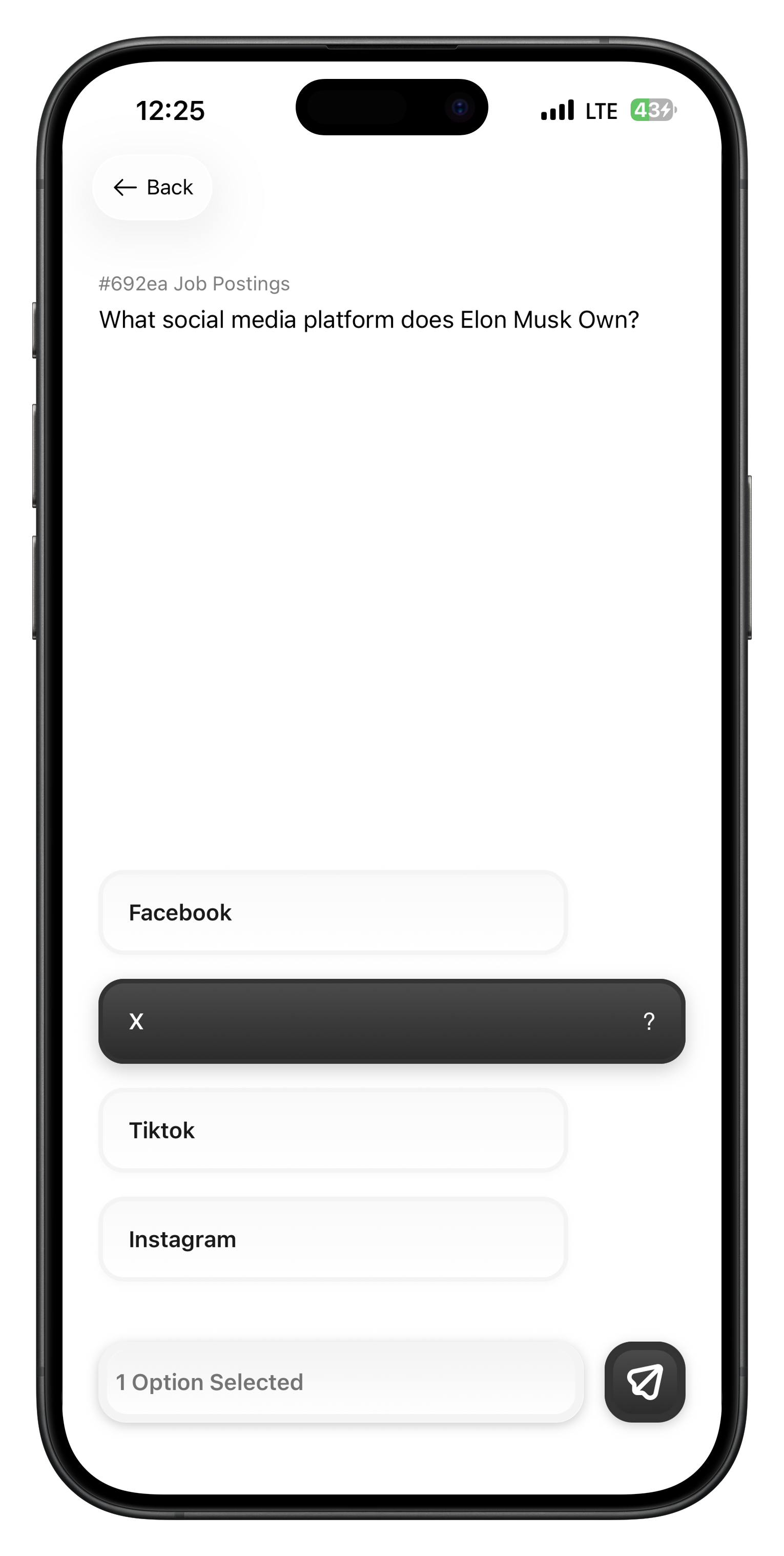 **Single Select Features:**
* **Visual Options**: Color-coded choices with icons and descriptions
* **Clear Labels**: Descriptive text explaining each option
* **Contextual Help**: Additional information for complex decisions
* **Required Validation**: Prevents submission without selection
### When to Use Single Select
Approve, reject, or request changes for content review processes.
Classify content, issues, or requests into specific categories.
Set priority levels, urgency indicators, or importance ratings.
Update request status, progress indicators, or workflow stages.
### Single Select Best Practices
Review every available option before making your selection to ensure you choose the most appropriate one.
Factor in the specific request context, guidelines, and any special instructions provided.
Pay attention to option descriptions and additional context to make informed decisions.
Apply the same criteria across similar requests to maintain consistency in your reviews.
## Multi Select Responses
Perfect when multiple aspects need to be evaluated simultaneously.
### Multi Select Interface
**Single Select Features:**
* **Visual Options**: Color-coded choices with icons and descriptions
* **Clear Labels**: Descriptive text explaining each option
* **Contextual Help**: Additional information for complex decisions
* **Required Validation**: Prevents submission without selection
### When to Use Single Select
Approve, reject, or request changes for content review processes.
Classify content, issues, or requests into specific categories.
Set priority levels, urgency indicators, or importance ratings.
Update request status, progress indicators, or workflow stages.
### Single Select Best Practices
Review every available option before making your selection to ensure you choose the most appropriate one.
Factor in the specific request context, guidelines, and any special instructions provided.
Pay attention to option descriptions and additional context to make informed decisions.
Apply the same criteria across similar requests to maintain consistency in your reviews.
## Multi Select Responses
Perfect when multiple aspects need to be evaluated simultaneously.
### Multi Select Interface
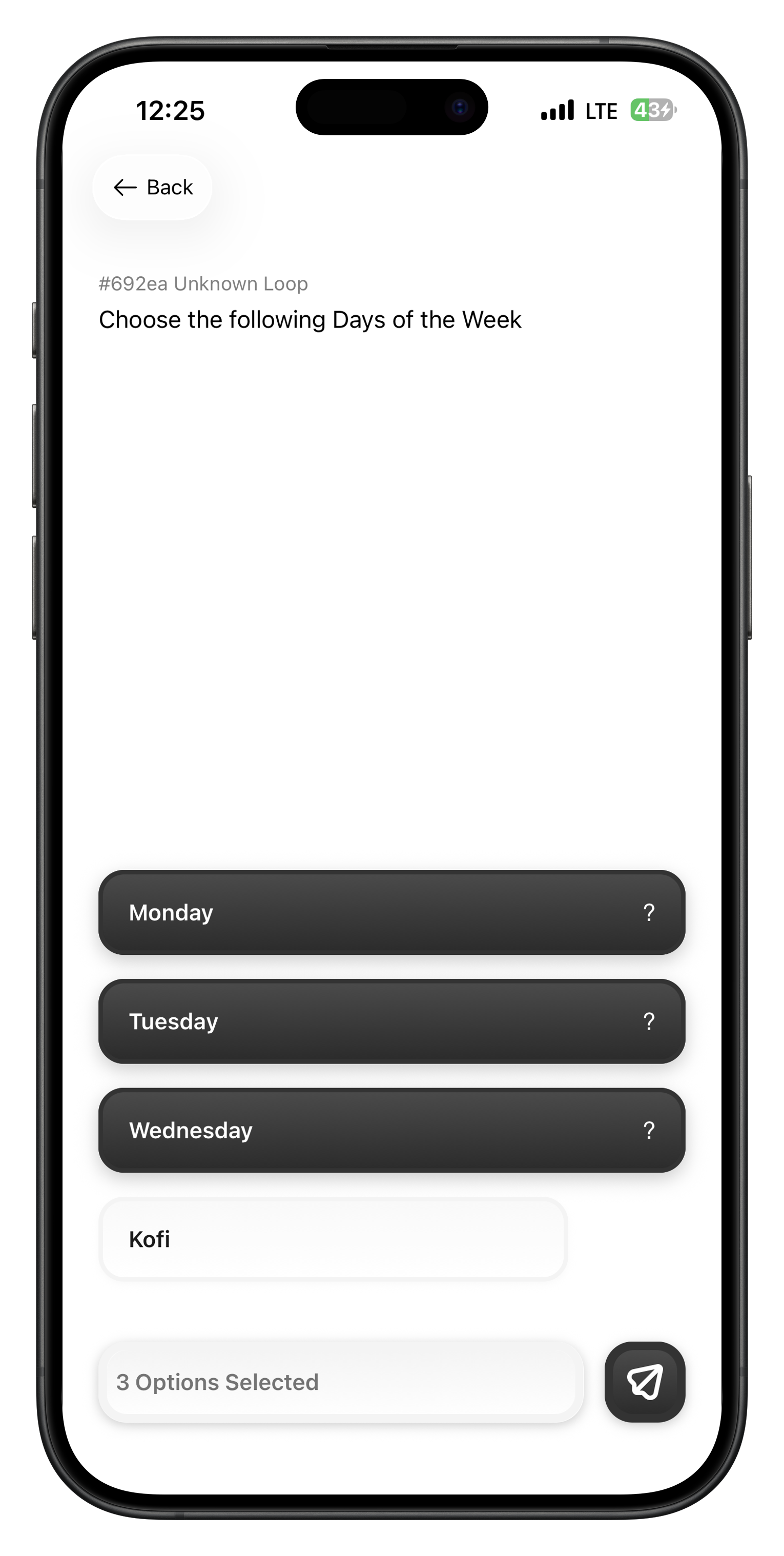 **Multi Select Features:**
* **Checkbox Interface**: Clear selection indicators for each option
* **Selection Limits**: Minimum and maximum selection requirements
* **Category Grouping**: Options organized by relevant categories
* **Selection Counter**: Shows current selections vs. requirements
### Multi Select Use Cases
Select all problems, violations, or areas needing attention in the content being reviewed.
Mark all regulatory requirements, policy guidelines, or standards that apply to the request.
Evaluate multiple aspects like usability, design, functionality, and performance simultaneously.
Check off all quality standards met or areas that need improvement in the submission.
### Multi Select Strategies
Go through each option methodically, checking against the content or requirements. Don't rush through the list - take time to evaluate each criterion properly.
Pay attention to minimum and maximum selection requirements. Some reviews may require you to select at least one option, while others may have upper limits on selections.
## Rating Responses
Numeric ratings provide quantitative assessments on customizable scales.
### Rating Interface
**Multi Select Features:**
* **Checkbox Interface**: Clear selection indicators for each option
* **Selection Limits**: Minimum and maximum selection requirements
* **Category Grouping**: Options organized by relevant categories
* **Selection Counter**: Shows current selections vs. requirements
### Multi Select Use Cases
Select all problems, violations, or areas needing attention in the content being reviewed.
Mark all regulatory requirements, policy guidelines, or standards that apply to the request.
Evaluate multiple aspects like usability, design, functionality, and performance simultaneously.
Check off all quality standards met or areas that need improvement in the submission.
### Multi Select Strategies
Go through each option methodically, checking against the content or requirements. Don't rush through the list - take time to evaluate each criterion properly.
Pay attention to minimum and maximum selection requirements. Some reviews may require you to select at least one option, while others may have upper limits on selections.
## Rating Responses
Numeric ratings provide quantitative assessments on customizable scales.
### Rating Interface
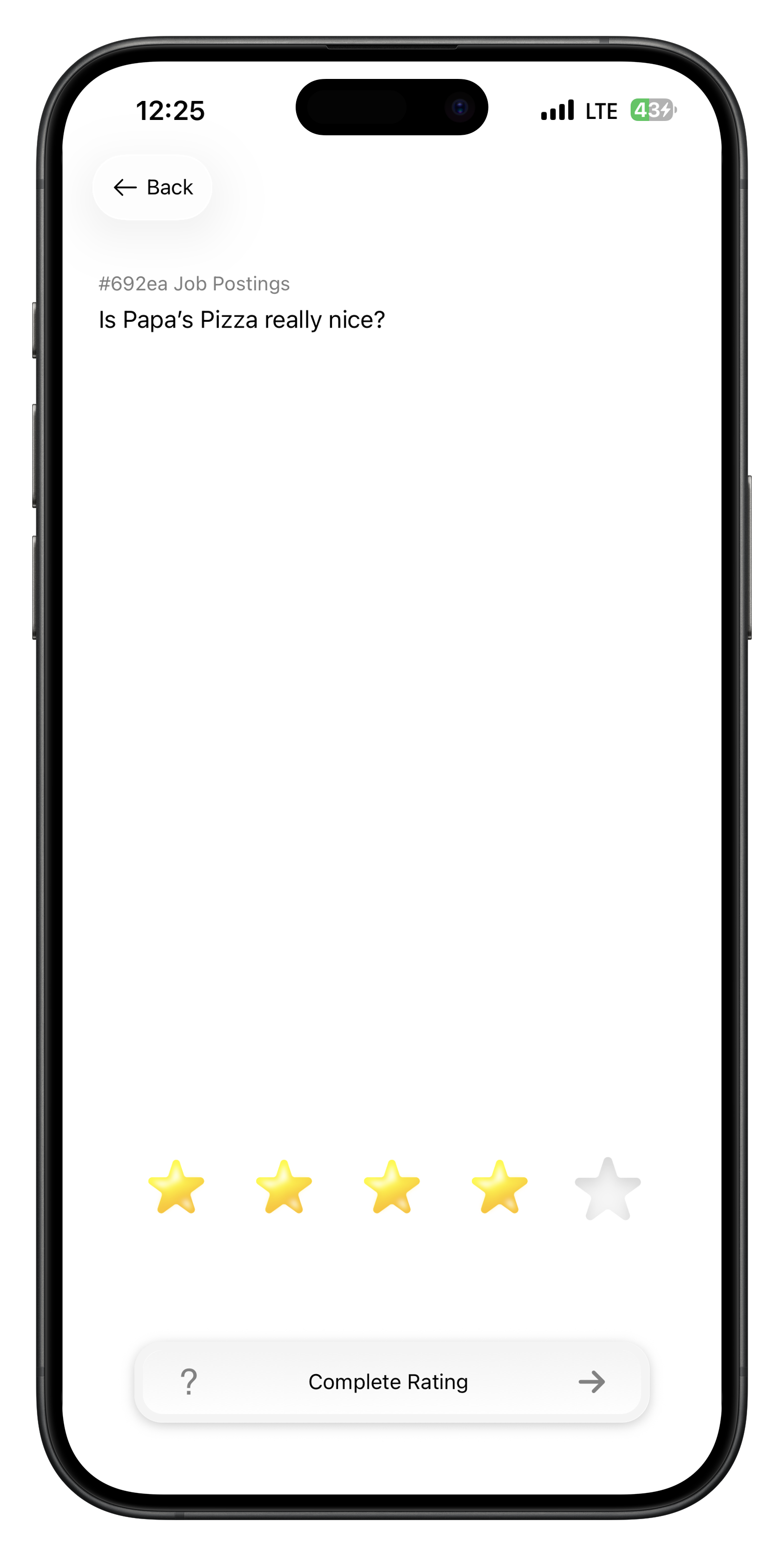 **Rating Features:**
* **Interactive Slider**: Smooth rating selection with precise control
* **Scale Labels**: Custom labels for different rating levels
* **Visual Feedback**: Real-time preview of selected rating
* **Decimal Support**: Half-point or decimal ratings when configured
### Rating Guidelines
Review the minimum and maximum values, and understand what each rating level represents before scoring.
Apply the same standards across similar items to ensure your ratings are comparable and fair.
Don't cluster ratings in the middle - use the full scale when content deserves high or low scores.
Factor in the request's specific criteria and intended use case when determining ratings.
### Rating Scale Examples
* **1-2**: Poor quality, major issues, not usable
* **3-4**: Below average, significant problems
* **5-6**: Average quality, minor issues
* **7-8**: Good quality, meets standards well
* **9-10**: Excellent, exceeds expectations
* **1**: Very uncertain, need more information
* **2**: Somewhat uncertain, limited confidence
* **3**: Moderately confident in assessment
* **4**: Quite confident, solid evaluation
* **5**: Very confident, clear determination
* **0-20**: Very low risk, minimal concerns
* **21-40**: Low risk, minor considerations
* **41-60**: Medium risk, moderate attention needed
* **61-80**: High risk, significant concerns
* **81-100**: Very high risk, immediate action required
## Number Responses
Precise numeric input with validation and formatting options.
### Number Interface
**Rating Features:**
* **Interactive Slider**: Smooth rating selection with precise control
* **Scale Labels**: Custom labels for different rating levels
* **Visual Feedback**: Real-time preview of selected rating
* **Decimal Support**: Half-point or decimal ratings when configured
### Rating Guidelines
Review the minimum and maximum values, and understand what each rating level represents before scoring.
Apply the same standards across similar items to ensure your ratings are comparable and fair.
Don't cluster ratings in the middle - use the full scale when content deserves high or low scores.
Factor in the request's specific criteria and intended use case when determining ratings.
### Rating Scale Examples
* **1-2**: Poor quality, major issues, not usable
* **3-4**: Below average, significant problems
* **5-6**: Average quality, minor issues
* **7-8**: Good quality, meets standards well
* **9-10**: Excellent, exceeds expectations
* **1**: Very uncertain, need more information
* **2**: Somewhat uncertain, limited confidence
* **3**: Moderately confident in assessment
* **4**: Quite confident, solid evaluation
* **5**: Very confident, clear determination
* **0-20**: Very low risk, minimal concerns
* **21-40**: Low risk, minor considerations
* **41-60**: Medium risk, moderate attention needed
* **61-80**: High risk, significant concerns
* **81-100**: Very high risk, immediate action required
## Number Responses
Precise numeric input with validation and formatting options.
### Number Interface
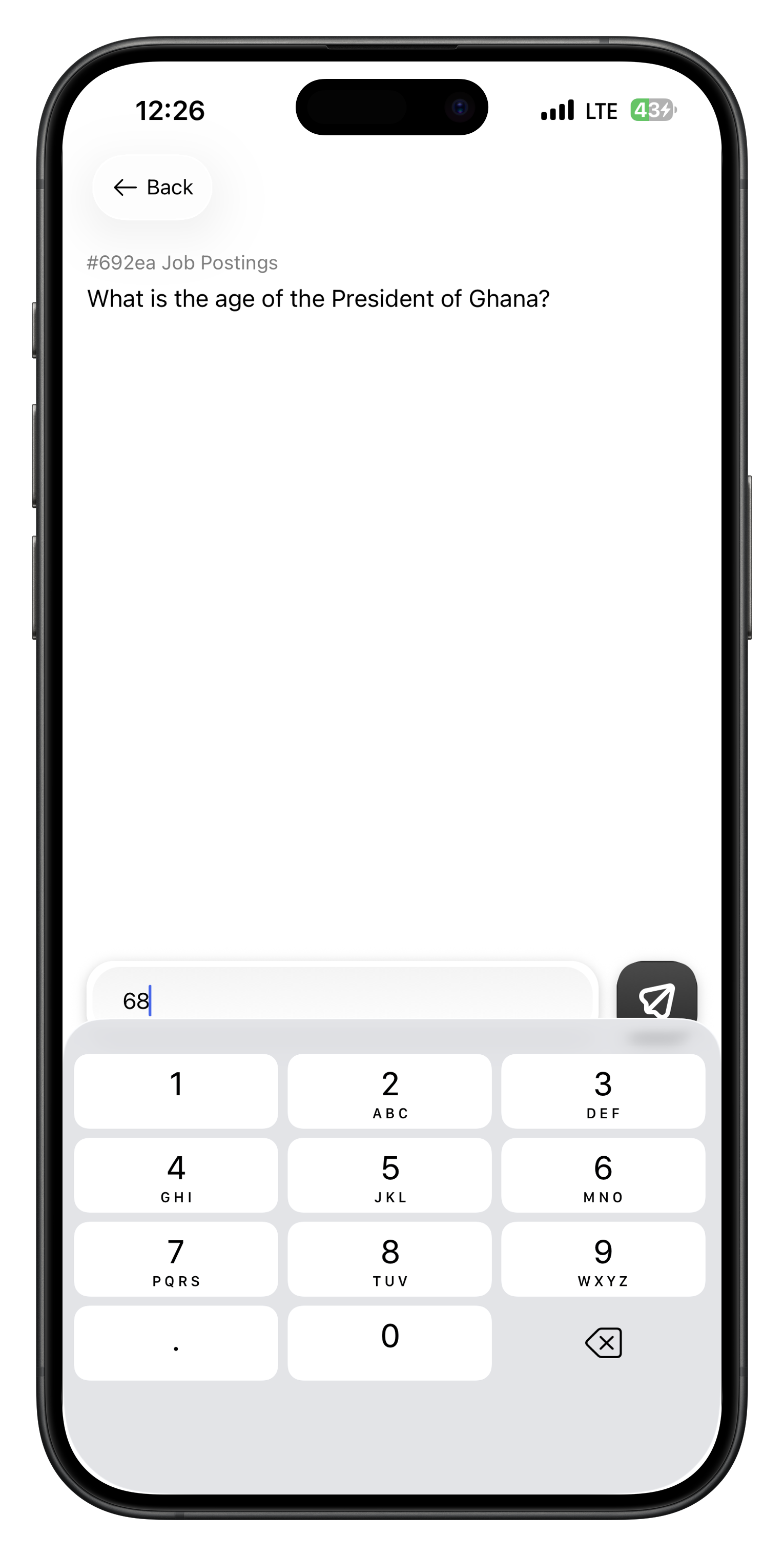 **Number Features:**
* **Formatted Input**: Automatic prefix, suffix, and decimal formatting
* **Range Validation**: Prevents out-of-bounds number entry
* **Input Assistance**: Numeric keypad optimized for mobile
* **Real-time Formatting**: Shows formatted value as you type
### Number Response Applications
Assess fair market prices, cost estimates, or value assessments for products, services, or assets.
Count items, estimate amounts, or provide measurements for inventory, capacity, or resource planning.
Provide specific performance indicators, scores, or measurements based on your expertise.
Estimate completion times, durations, or scheduling requirements for tasks and projects.
### Number Input Tips
Pay attention to decimal place requirements. Some requests need whole numbers, others require precise decimal values. Use appropriate precision for the context.
Always double-check your number entries before submitting. Incorrect numeric values can have significant downstream impacts on pricing, scheduling, or resource allocation.
## Boolean Responses
Simple binary decisions for clear yes/no scenarios.
### Boolean Interface
Boolean responses present two clear options with custom labels and colors:
**Boolean Features:**
* **Clear Options**: Distinct true/false choices with descriptive labels
* **Color Coding**: Visual indicators to reinforce the choice significance
* **Quick Selection**: Fast decision-making for binary scenarios
* **Confirmation**: Clear indication of selected option before submission
### Boolean Decision Making
Consider the consequences of both options and choose the one that best serves the request's objectives.
Use the same decision-making framework across similar boolean choices for consistency.
When uncertain, choose the option that prioritizes safety, compliance, or conservative outcomes.
Even for simple boolean choices, be prepared to explain your decision if questioned later.
### Boolean Use Cases
"Does this content comply with regulations?" - Clear yes/no determination.
"Does this meet quality standards?" - Pass/fail decisions for quality control.
"Is this transaction suspicious?" - Binary risk determinations for security reviews.
"Should this be approved?" - Simple approval/rejection decisions.
## Response Workflow
### Step-by-Step Response Process
Read the request carefully, including context, instructions, and specific requirements for your response.
Identify which type of response is expected and familiarize yourself with its specific requirements.
Collect any additional information needed to provide an informed, accurate response.
Compose your response thoughtfully, following best practices for the specific response type.
Double-check your response for accuracy, completeness, and adherence to guidelines.
Submit your response and verify it was recorded correctly in the system.
### Response Quality Checklist
* ✅ Response addresses all aspects of the request
* ✅ Information provided is factually correct
* ✅ All required fields are completed properly
* ✅ Response format matches requirements
* ✅ Response is clear and easy to understand
* ✅ Feedback is specific and actionable
* ✅ Reasoning is explained when appropriate
* ✅ Professional tone maintained throughout
* ✅ Response submitted within deadline
* ✅ Follows team guidelines and standards
* ✅ Complies with relevant policies
* ✅ Escalated when uncertain or appropriate
## Advanced Response Features
### Saving Drafts
The mobile app automatically saves your progress:
* **Real-time Saving**: Changes saved every few seconds
* **Draft Recovery**: Resume interrupted responses after app restart
* **Multiple Drafts**: Manage drafts for multiple concurrent requests
* **Sync Across Devices**: Drafts available on all your devices
### Getting Help
When you need assistance with a response:
Ask the requestor for additional context or clarification when requirements are unclear.
Consult with team members or supervisors for complex or unusual requests.
Escalate requests that exceed your expertise or authority level.
Reference guidelines, policies, and help materials while responding.
### Batch Responses
For similar requests, use batch response features:
Save frequently used responses as templates for similar future requests.
Apply the same response to multiple similar requests when appropriate.
Filter requests by type, priority, or similarity for efficient batch processing.
## Response Analytics
### Tracking Your Performance
Monitor your response quality and efficiency:
* Average time per response type
* Improvement trends over time
* Comparison with team benchmarks
* Peak productivity periods
* Response accuracy ratings
* Consistency with team decisions
* Feedback from requestors
* Skill development progress
* Responses completed per period
* Request type distribution
* Peak activity patterns
* Workload balance
* Decision implementation rates
* Feedback utilization scores
* Process improvement contributions
* Value-added metrics
### Continuous Improvement
Regularly review feedback on your responses to identify improvement opportunities.
Study high-quality responses from experienced team members to enhance your skills.
Work on maintaining consistent quality across different request types and contexts.
Develop knowledge in new areas to handle a broader range of requests effectively.
## Troubleshooting
### Common Response Issues
* Check internet connection stability
* Verify all required fields are completed
* Ensure response meets length/format requirements
* Try refreshing the app and resubmitting
* Confirm app has storage permissions
* Check available device storage space
* Update to latest app version
* Clear app cache if problem persists
* Re-read request instructions carefully
* Check response type requirements
* Look for examples or templates
* Ask team members for clarification
* Prioritize most critical aspects
* Use quick response features when available
* Request deadline extension if justified
* Escalate if unable to complete quality response
### Performance Optimization
* **Keyboard Shortcuts**: Learn app shortcuts for faster navigation
* **Template Usage**: Create templates for common response patterns
* **Batch Processing**: Group similar requests for efficient handling
* **Focus Time**: Set aside dedicated time blocks for response work
## Best Practices Summary
### Quality Response Principles
Review all aspects of the request and provide comprehensive, well-considered responses.
Maintain professional objectivity and apply consistent standards across all responses.
Ensure your responses are clear, specific, and actionable for the requestor.
Respect time constraints while maintaining quality standards for all responses.
### Professional Development
Continuously develop expertise in your review domains through training, practice, and learning from feedback.
Prioritize response quality over quantity - thoughtful, accurate responses are more valuable than rushed ones.
Engage with team members, share knowledge, and contribute to collective improvement of response processes.
## Next Steps
Ready to start providing high-quality responses?
Navigate the app interface and manage your request queue effectively.
Get set up and start receiving requests to review and respond to.
Deep dive into the technical details of all available response types.
Get the HITL.sh mobile app and start responding to requests on the go.
**Number Features:**
* **Formatted Input**: Automatic prefix, suffix, and decimal formatting
* **Range Validation**: Prevents out-of-bounds number entry
* **Input Assistance**: Numeric keypad optimized for mobile
* **Real-time Formatting**: Shows formatted value as you type
### Number Response Applications
Assess fair market prices, cost estimates, or value assessments for products, services, or assets.
Count items, estimate amounts, or provide measurements for inventory, capacity, or resource planning.
Provide specific performance indicators, scores, or measurements based on your expertise.
Estimate completion times, durations, or scheduling requirements for tasks and projects.
### Number Input Tips
Pay attention to decimal place requirements. Some requests need whole numbers, others require precise decimal values. Use appropriate precision for the context.
Always double-check your number entries before submitting. Incorrect numeric values can have significant downstream impacts on pricing, scheduling, or resource allocation.
## Boolean Responses
Simple binary decisions for clear yes/no scenarios.
### Boolean Interface
Boolean responses present two clear options with custom labels and colors:
**Boolean Features:**
* **Clear Options**: Distinct true/false choices with descriptive labels
* **Color Coding**: Visual indicators to reinforce the choice significance
* **Quick Selection**: Fast decision-making for binary scenarios
* **Confirmation**: Clear indication of selected option before submission
### Boolean Decision Making
Consider the consequences of both options and choose the one that best serves the request's objectives.
Use the same decision-making framework across similar boolean choices for consistency.
When uncertain, choose the option that prioritizes safety, compliance, or conservative outcomes.
Even for simple boolean choices, be prepared to explain your decision if questioned later.
### Boolean Use Cases
"Does this content comply with regulations?" - Clear yes/no determination.
"Does this meet quality standards?" - Pass/fail decisions for quality control.
"Is this transaction suspicious?" - Binary risk determinations for security reviews.
"Should this be approved?" - Simple approval/rejection decisions.
## Response Workflow
### Step-by-Step Response Process
Read the request carefully, including context, instructions, and specific requirements for your response.
Identify which type of response is expected and familiarize yourself with its specific requirements.
Collect any additional information needed to provide an informed, accurate response.
Compose your response thoughtfully, following best practices for the specific response type.
Double-check your response for accuracy, completeness, and adherence to guidelines.
Submit your response and verify it was recorded correctly in the system.
### Response Quality Checklist
* ✅ Response addresses all aspects of the request
* ✅ Information provided is factually correct
* ✅ All required fields are completed properly
* ✅ Response format matches requirements
* ✅ Response is clear and easy to understand
* ✅ Feedback is specific and actionable
* ✅ Reasoning is explained when appropriate
* ✅ Professional tone maintained throughout
* ✅ Response submitted within deadline
* ✅ Follows team guidelines and standards
* ✅ Complies with relevant policies
* ✅ Escalated when uncertain or appropriate
## Advanced Response Features
### Saving Drafts
The mobile app automatically saves your progress:
* **Real-time Saving**: Changes saved every few seconds
* **Draft Recovery**: Resume interrupted responses after app restart
* **Multiple Drafts**: Manage drafts for multiple concurrent requests
* **Sync Across Devices**: Drafts available on all your devices
### Getting Help
When you need assistance with a response:
Ask the requestor for additional context or clarification when requirements are unclear.
Consult with team members or supervisors for complex or unusual requests.
Escalate requests that exceed your expertise or authority level.
Reference guidelines, policies, and help materials while responding.
### Batch Responses
For similar requests, use batch response features:
Save frequently used responses as templates for similar future requests.
Apply the same response to multiple similar requests when appropriate.
Filter requests by type, priority, or similarity for efficient batch processing.
## Response Analytics
### Tracking Your Performance
Monitor your response quality and efficiency:
* Average time per response type
* Improvement trends over time
* Comparison with team benchmarks
* Peak productivity periods
* Response accuracy ratings
* Consistency with team decisions
* Feedback from requestors
* Skill development progress
* Responses completed per period
* Request type distribution
* Peak activity patterns
* Workload balance
* Decision implementation rates
* Feedback utilization scores
* Process improvement contributions
* Value-added metrics
### Continuous Improvement
Regularly review feedback on your responses to identify improvement opportunities.
Study high-quality responses from experienced team members to enhance your skills.
Work on maintaining consistent quality across different request types and contexts.
Develop knowledge in new areas to handle a broader range of requests effectively.
## Troubleshooting
### Common Response Issues
* Check internet connection stability
* Verify all required fields are completed
* Ensure response meets length/format requirements
* Try refreshing the app and resubmitting
* Confirm app has storage permissions
* Check available device storage space
* Update to latest app version
* Clear app cache if problem persists
* Re-read request instructions carefully
* Check response type requirements
* Look for examples or templates
* Ask team members for clarification
* Prioritize most critical aspects
* Use quick response features when available
* Request deadline extension if justified
* Escalate if unable to complete quality response
### Performance Optimization
* **Keyboard Shortcuts**: Learn app shortcuts for faster navigation
* **Template Usage**: Create templates for common response patterns
* **Batch Processing**: Group similar requests for efficient handling
* **Focus Time**: Set aside dedicated time blocks for response work
## Best Practices Summary
### Quality Response Principles
Review all aspects of the request and provide comprehensive, well-considered responses.
Maintain professional objectivity and apply consistent standards across all responses.
Ensure your responses are clear, specific, and actionable for the requestor.
Respect time constraints while maintaining quality standards for all responses.
### Professional Development
Continuously develop expertise in your review domains through training, practice, and learning from feedback.
Prioritize response quality over quantity - thoughtful, accurate responses are more valuable than rushed ones.
Engage with team members, share knowledge, and contribute to collective improvement of response processes.
## Next Steps
Ready to start providing high-quality responses?
Navigate the app interface and manage your request queue effectively.
Get set up and start receiving requests to review and respond to.
Deep dive into the technical details of all available response types.
Get the HITL.sh mobile app and start responding to requests on the go.