> ## Documentation Index
> Fetch the complete documentation index at: https://docs.hitl.sh/llms.txt
> Use this file to discover all available pages before exploring further.
# Overview
> Complete guide to the HITL mobile app for reviewers. Learn how to join loops, respond to requests, and provide high-quality human feedback on the go.
The HITL mobile app is where human reviewers receive and respond to your requests. Available on iOS and Android, it provides a streamlined interface for reviewing content, making decisions, and providing feedback in real-time.
**For Reviewers**: This documentation helps reviewers understand how to use the mobile app effectively. Share this with your team members who will be responding to requests.
## Download the App
Download HITL for iPhone and iPad from the App Store
**Requires**: iOS 14.0 or later
Download HITL for Android devices from Google Play
**Requires**: Android 8.0 (API level 26) or later
## Getting Started as a Reviewer
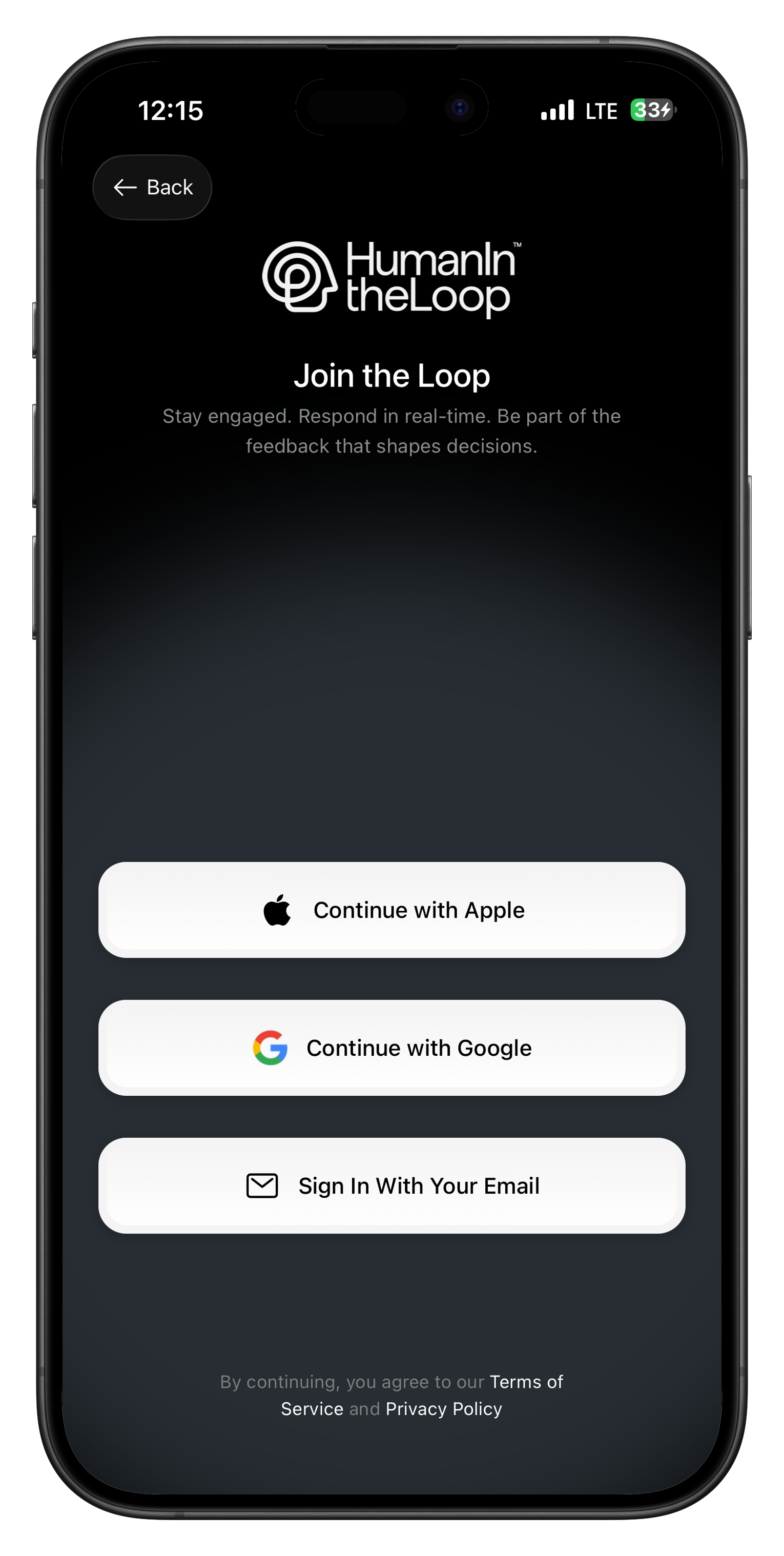 ### Step 1: Download and Install
1. Download the HITL app from your device's app store
2. Open the app and complete the initial setup
3. Create your reviewer account or sign in if you already have one
### Step 2: Join a Loop
You can join loops in several ways:
1. Ask the loop creator for the QR code
2. Open the HITL app
3. Tap "Join Loop" on the main screen
4. Point your camera at the QR code
5. Confirm you want to join the loop
1. Get the 6-digit invite code from the loop creator
2. Open the HITL app
3. Tap "Join Loop"
4. Select "Enter Code Manually"
5. Type the invite code and tap "Join"
1. Tap the join link shared by the loop creator
2. The HITL app will open automatically
3. Review the loop details
4. Tap "Join Loop" to confirm
### Step 3: Set Up Notifications
Enable push notifications to receive requests immediately:
1. Go to **Settings** in the app
2. Tap **Notifications**
3. Enable **Push Notifications**
4. Choose your notification preferences:
* **New Requests**: Get notified of new requests in your loops
* **Priority Requests**: Immediate alerts for high/critical priority items
* **Loop Updates**: Notifications about loop changes
## App Interface Overview
### Step 1: Download and Install
1. Download the HITL app from your device's app store
2. Open the app and complete the initial setup
3. Create your reviewer account or sign in if you already have one
### Step 2: Join a Loop
You can join loops in several ways:
1. Ask the loop creator for the QR code
2. Open the HITL app
3. Tap "Join Loop" on the main screen
4. Point your camera at the QR code
5. Confirm you want to join the loop
1. Get the 6-digit invite code from the loop creator
2. Open the HITL app
3. Tap "Join Loop"
4. Select "Enter Code Manually"
5. Type the invite code and tap "Join"
1. Tap the join link shared by the loop creator
2. The HITL app will open automatically
3. Review the loop details
4. Tap "Join Loop" to confirm
### Step 3: Set Up Notifications
Enable push notifications to receive requests immediately:
1. Go to **Settings** in the app
2. Tap **Notifications**
3. Enable **Push Notifications**
4. Choose your notification preferences:
* **New Requests**: Get notified of new requests in your loops
* **Priority Requests**: Immediate alerts for high/critical priority items
* **Loop Updates**: Notifications about loop changes
## App Interface Overview
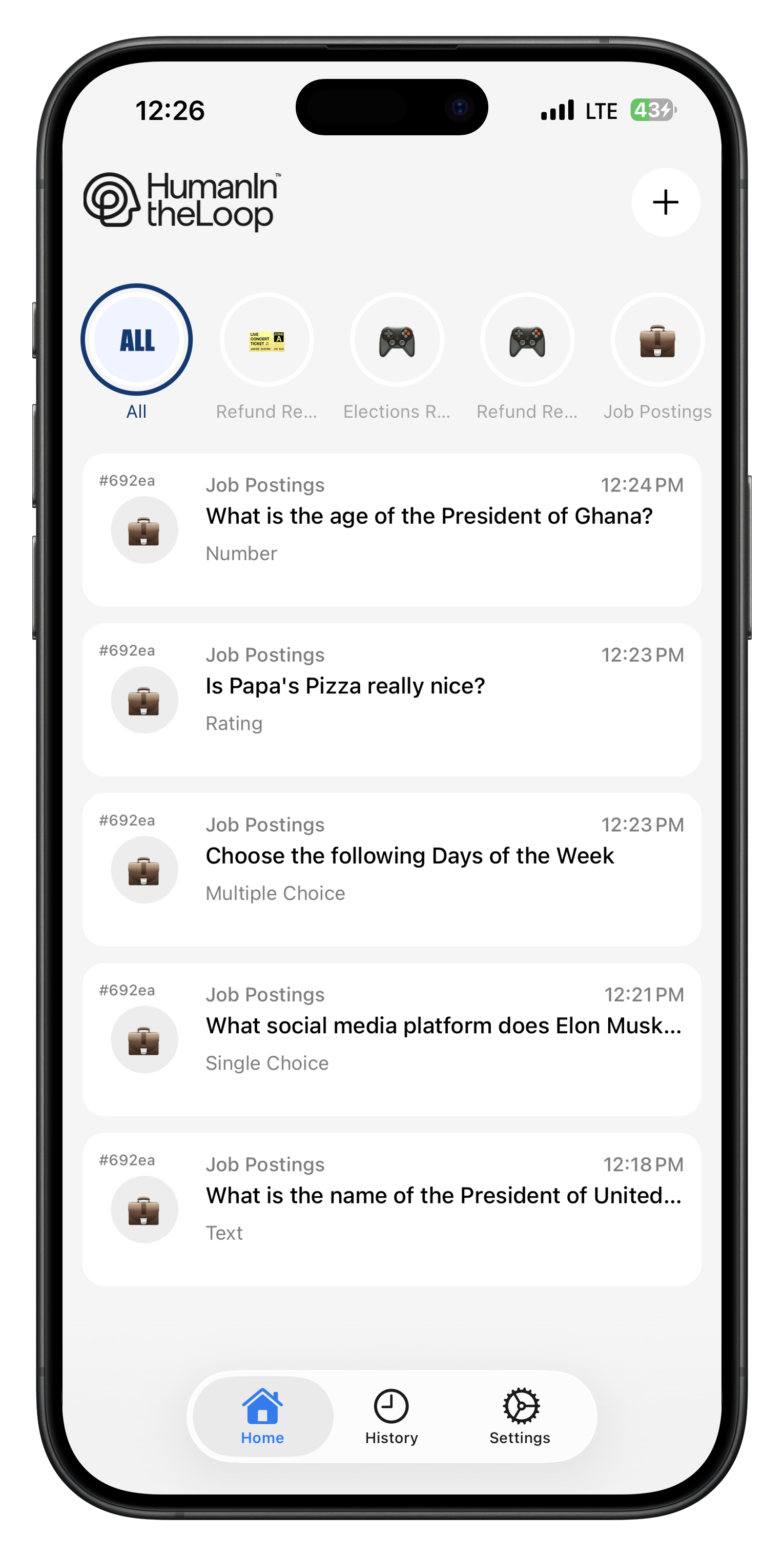 ### Home Screen
* **Active Requests**: Requests available for you to claim
* **My Responses**: Requests you're currently working on
* **Completed**: Recently completed requests
* **Loops**: All loops you've joined
### Request List
Each request shows:
* **Priority Level**: Visual indicator (🟢 Low, 🟡 Medium, 🔴 High, ⚫ Critical)
* **Request Preview**: First line of the request text
* **Time Posted**: When the request was created
* **Timeout**: Time remaining to complete the request
* **Request Type**: Icon indicating the response type needed
### Loop Management
* **Loop Details**: Name, description, and member count
* **Loop Settings**: Notification preferences for each loop
* **Leave Loop**: Option to leave loops you no longer want to participate in
## Responding to Requests
### Claiming a Request
On the home screen, you'll see all unclaimed requests from your loops.
Tap on a request that interests you or matches your expertise.
Read the full request text and understand what's being asked.
Tap "Claim Request" to start working on it. This prevents other reviewers from claiming the same request.
Once you claim a request, you have a limited time to complete it (shown in the app). If you don't respond in time, the request may timeout and use the default response.
### Response Types in the App
The mobile app provides optimized interfaces for each response type:
**Interface**: Large text input area with character counter
**Features**:
* Rich text formatting (bold, italic, bullets)
* Voice-to-text input support
* Draft auto-save
* Spell check and grammar suggestions
**Best Practices**:
* Be thorough but concise
* Use proper grammar and spelling
* Provide specific examples when possible
* Stay objective and professional
**Interface**: Radio button list with clear option descriptions
**Features**:
* Large, easy-to-tap buttons
* Option descriptions that expand if needed
* Search functionality for long lists
* Confirmation before submitting
**Best Practices**:
* Read all options before selecting
* Choose the most accurate option
* If uncertain, look for "Other" or "Unsure" options
* Don't guess if you don't know
**Interface**: Checkbox list with selection counter
**Features**:
* Visual indication of how many items are selected
* Min/max selection requirements clearly shown
* Select all/clear all buttons for long lists
* Search and filter options
**Best Practices**:
* Select all relevant options
* Don't over-select to be "safe"
* Pay attention to minimum/maximum requirements
* Use "Other" option sparingly
**Interface**: Star rating or slider control
**Features**:
* Visual feedback as you adjust the rating
* Label descriptions for different rating levels
* Half-star support where configured
* Quick reset to change your rating
**Best Practices**:
* Use the full rating scale (don't just use 3-5)
* Consider the rating labels provided
* Be consistent with your rating criteria
* Don't default to middle ratings
**Interface**: Numeric keypad with unit labels
**Features**:
* Automatic input validation
* Unit display (e.g., "items", "\$", "%")
* Min/max value enforcement
* Decimal precision control
**Best Practices**:
* Double-check your numbers
* Pay attention to units and decimal places
* Use estimation when exact values aren't available
* Round appropriately for the context
**Interface**: Large Yes/No or True/False buttons
**Features**:
* Clear visual distinction between options
* Custom labels that describe the choice
* Confirmation dialog for important decisions
* Quick toggle interface
**Best Practices**:
* Read the labels carefully (not just Yes/No)
* Be decisive - avoid changing your answer multiple times
* Consider edge cases and default to the safer option
* Ask for clarification if the choice isn't clear
## Quality Guidelines for Reviewers
### Response Quality Standards
**Provide Correct Information**
* Base responses on facts, not assumptions
* Research when necessary and possible
* Admit uncertainty rather than guessing
* Double-check your work before submitting
**Address All Requirements**
* Read the entire request carefully
* Answer all parts of multi-part questions
* Provide sufficient detail for your response type
* Include context when helpful
**Respond Promptly**
* Claim requests you can complete quickly
* Don't claim requests if you can't finish them
* Release unclaimed requests if your availability changes
* Prioritize high-priority and time-sensitive requests
**Apply Standards Uniformly**
* Use similar criteria for similar requests
* Maintain consistent rating scales
* Follow any provided guidelines or examples
* Ask for clarification on ambiguous requirements
### Writing Effective Text Responses
**For Detailed Feedback**:
1. **Summary**: Brief overview of your assessment
2. **Specific Issues**: List problems you identified
3. **Recommendations**: Concrete suggestions for improvement
4. **Conclusion**: Final thoughts or overall rating explanation
**Example**:
```
Summary: The article is informative but needs some improvements.
Specific Issues:
- Three factual errors about renewable energy statistics
- Tone is too casual for the intended professional audience
- Missing citations for key claims
Recommendations:
- Verify statistics with recent government reports
- Revise language to be more formal and authoritative
- Add proper citations and references
Conclusion: With these changes, this could be an excellent piece for publication.
```
**Good**: "The pricing section has incorrect information. The basic plan is listed as $15/month but should be $19/month according to the current pricing page."
**Poor**: "Some pricing stuff looks wrong."
**Why Better**: Specific feedback tells the requester exactly what to fix and how to fix it.
**Good**: "I recommend revising the introduction to better align with the target audience's technical level."
**Poor**: "This intro is confusing and makes no sense."
**Why Better**: Professional language focuses on improvement rather than criticism.
**Good**: "Given that this content is intended for beginners, the technical jargon in paragraph 3 may be difficult to understand. Consider adding definitions or simplifying the language."
**Poor**: "Too technical."
**Why Better**: Explaining your reasoning helps the requester understand your perspective.
## Notification Management
### Home Screen
* **Active Requests**: Requests available for you to claim
* **My Responses**: Requests you're currently working on
* **Completed**: Recently completed requests
* **Loops**: All loops you've joined
### Request List
Each request shows:
* **Priority Level**: Visual indicator (🟢 Low, 🟡 Medium, 🔴 High, ⚫ Critical)
* **Request Preview**: First line of the request text
* **Time Posted**: When the request was created
* **Timeout**: Time remaining to complete the request
* **Request Type**: Icon indicating the response type needed
### Loop Management
* **Loop Details**: Name, description, and member count
* **Loop Settings**: Notification preferences for each loop
* **Leave Loop**: Option to leave loops you no longer want to participate in
## Responding to Requests
### Claiming a Request
On the home screen, you'll see all unclaimed requests from your loops.
Tap on a request that interests you or matches your expertise.
Read the full request text and understand what's being asked.
Tap "Claim Request" to start working on it. This prevents other reviewers from claiming the same request.
Once you claim a request, you have a limited time to complete it (shown in the app). If you don't respond in time, the request may timeout and use the default response.
### Response Types in the App
The mobile app provides optimized interfaces for each response type:
**Interface**: Large text input area with character counter
**Features**:
* Rich text formatting (bold, italic, bullets)
* Voice-to-text input support
* Draft auto-save
* Spell check and grammar suggestions
**Best Practices**:
* Be thorough but concise
* Use proper grammar and spelling
* Provide specific examples when possible
* Stay objective and professional
**Interface**: Radio button list with clear option descriptions
**Features**:
* Large, easy-to-tap buttons
* Option descriptions that expand if needed
* Search functionality for long lists
* Confirmation before submitting
**Best Practices**:
* Read all options before selecting
* Choose the most accurate option
* If uncertain, look for "Other" or "Unsure" options
* Don't guess if you don't know
**Interface**: Checkbox list with selection counter
**Features**:
* Visual indication of how many items are selected
* Min/max selection requirements clearly shown
* Select all/clear all buttons for long lists
* Search and filter options
**Best Practices**:
* Select all relevant options
* Don't over-select to be "safe"
* Pay attention to minimum/maximum requirements
* Use "Other" option sparingly
**Interface**: Star rating or slider control
**Features**:
* Visual feedback as you adjust the rating
* Label descriptions for different rating levels
* Half-star support where configured
* Quick reset to change your rating
**Best Practices**:
* Use the full rating scale (don't just use 3-5)
* Consider the rating labels provided
* Be consistent with your rating criteria
* Don't default to middle ratings
**Interface**: Numeric keypad with unit labels
**Features**:
* Automatic input validation
* Unit display (e.g., "items", "\$", "%")
* Min/max value enforcement
* Decimal precision control
**Best Practices**:
* Double-check your numbers
* Pay attention to units and decimal places
* Use estimation when exact values aren't available
* Round appropriately for the context
**Interface**: Large Yes/No or True/False buttons
**Features**:
* Clear visual distinction between options
* Custom labels that describe the choice
* Confirmation dialog for important decisions
* Quick toggle interface
**Best Practices**:
* Read the labels carefully (not just Yes/No)
* Be decisive - avoid changing your answer multiple times
* Consider edge cases and default to the safer option
* Ask for clarification if the choice isn't clear
## Quality Guidelines for Reviewers
### Response Quality Standards
**Provide Correct Information**
* Base responses on facts, not assumptions
* Research when necessary and possible
* Admit uncertainty rather than guessing
* Double-check your work before submitting
**Address All Requirements**
* Read the entire request carefully
* Answer all parts of multi-part questions
* Provide sufficient detail for your response type
* Include context when helpful
**Respond Promptly**
* Claim requests you can complete quickly
* Don't claim requests if you can't finish them
* Release unclaimed requests if your availability changes
* Prioritize high-priority and time-sensitive requests
**Apply Standards Uniformly**
* Use similar criteria for similar requests
* Maintain consistent rating scales
* Follow any provided guidelines or examples
* Ask for clarification on ambiguous requirements
### Writing Effective Text Responses
**For Detailed Feedback**:
1. **Summary**: Brief overview of your assessment
2. **Specific Issues**: List problems you identified
3. **Recommendations**: Concrete suggestions for improvement
4. **Conclusion**: Final thoughts or overall rating explanation
**Example**:
```
Summary: The article is informative but needs some improvements.
Specific Issues:
- Three factual errors about renewable energy statistics
- Tone is too casual for the intended professional audience
- Missing citations for key claims
Recommendations:
- Verify statistics with recent government reports
- Revise language to be more formal and authoritative
- Add proper citations and references
Conclusion: With these changes, this could be an excellent piece for publication.
```
**Good**: "The pricing section has incorrect information. The basic plan is listed as $15/month but should be $19/month according to the current pricing page."
**Poor**: "Some pricing stuff looks wrong."
**Why Better**: Specific feedback tells the requester exactly what to fix and how to fix it.
**Good**: "I recommend revising the introduction to better align with the target audience's technical level."
**Poor**: "This intro is confusing and makes no sense."
**Why Better**: Professional language focuses on improvement rather than criticism.
**Good**: "Given that this content is intended for beginners, the technical jargon in paragraph 3 may be difficult to understand. Consider adding definitions or simplifying the language."
**Poor**: "Too technical."
**Why Better**: Explaining your reasoning helps the requester understand your perspective.
## Notification Management
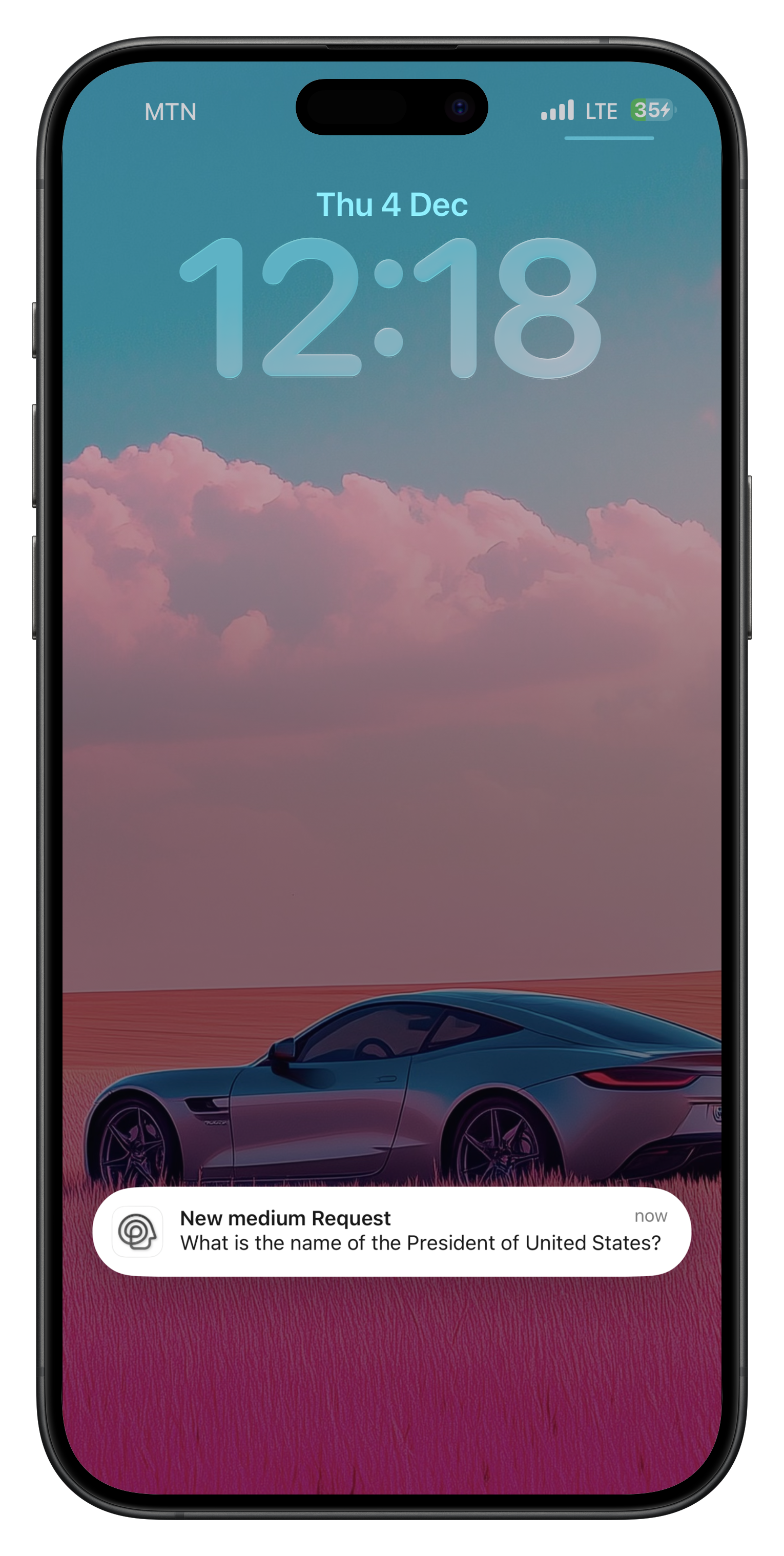 ### Notification Types
**When**: A new request is posted to one of your loops
**Includes**: Loop name, request priority, and preview text
**Action**: Tap to view and potentially claim the request
**When**: High or critical priority requests are posted
**Includes**: Urgency indicator and time-sensitive badge
**Action**: Immediate notification with custom alert sound
**When**: 15 minutes before your claimed request times out
**Includes**: Time remaining and quick access to complete
**Action**: Tap to quickly finish your response
**When**: New members join, loop settings change, or announcements
**Includes**: Loop name and summary of changes
**Action**: Optional - can be disabled in settings
### Customizing Notifications
### Notification Types
**When**: A new request is posted to one of your loops
**Includes**: Loop name, request priority, and preview text
**Action**: Tap to view and potentially claim the request
**When**: High or critical priority requests are posted
**Includes**: Urgency indicator and time-sensitive badge
**Action**: Immediate notification with custom alert sound
**When**: 15 minutes before your claimed request times out
**Includes**: Time remaining and quick access to complete
**Action**: Tap to quickly finish your response
**When**: New members join, loop settings change, or announcements
**Includes**: Loop name and summary of changes
**Action**: Optional - can be disabled in settings
### Customizing Notifications
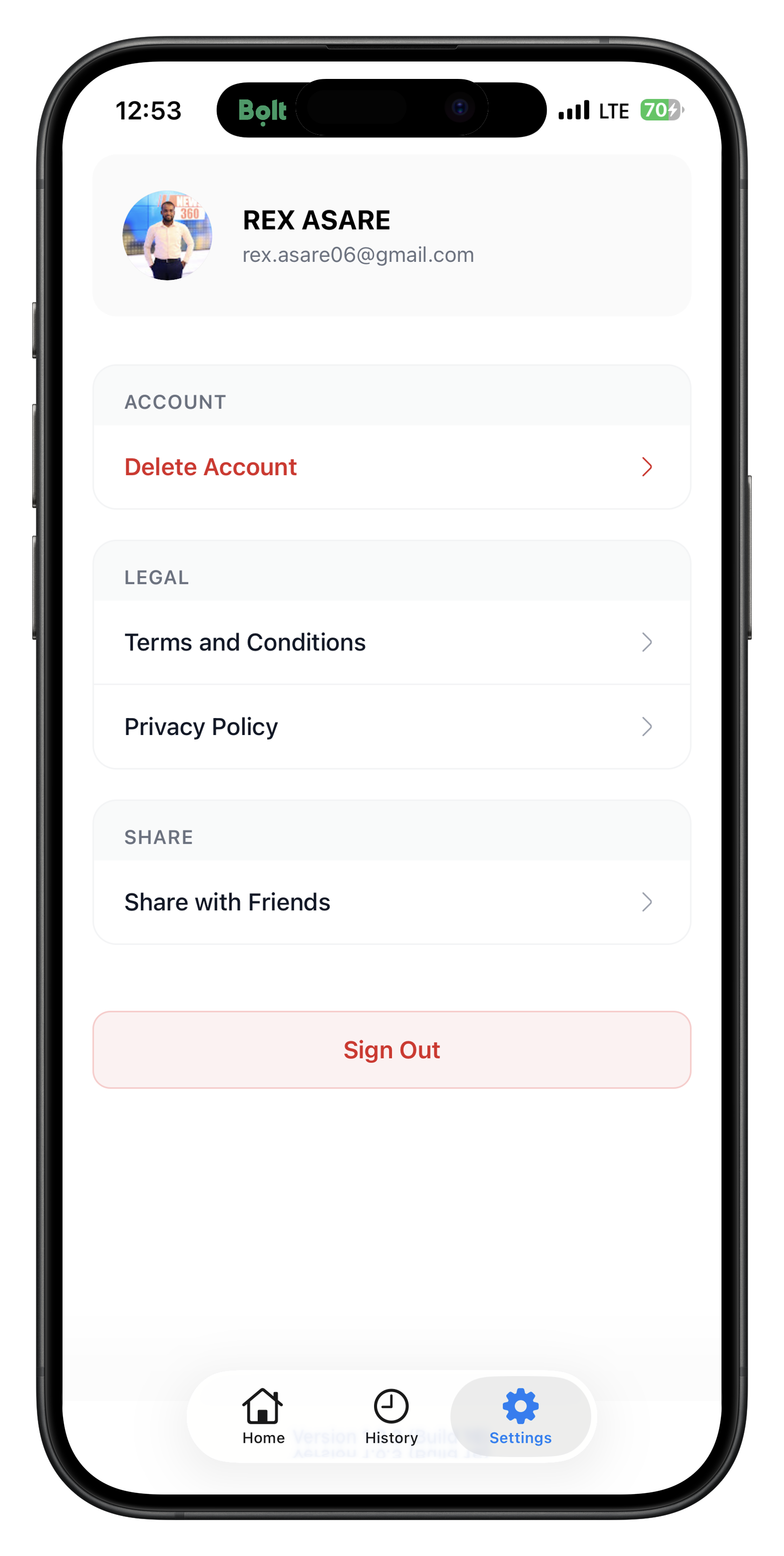 1. Go to **Settings** → **Notifications**
2. Configure notification preferences:
* **Quiet Hours**: Set times when notifications are muted
* **Priority Only**: Only receive critical/high priority alerts
* **Loop-Specific**: Different settings for each loop
* **Sound & Vibration**: Customize alert types
* **Badge Count**: Show number of pending requests on app icon
## Performance and Reputation
### Quality Metrics
The app tracks several quality indicators (visible to you and loop creators):
**Measure**: Average time from claiming to completing requests
**Good Range**: Varies by request type, typically 5-30 minutes
**Impact**: Faster responses improve your reputation score
**Measure**: Percentage of claimed requests you complete (vs. timeout)
**Target**: Above 90% completion rate
**Impact**: High completion rates increase request priority for you
**Measure**: Ratings from request creators on your responses
**Scale**: 1-5 stars with optional comments
**Impact**: Higher ratings lead to more request opportunities
**Measure**: How consistent your responses are with other reviewers
**Assessment**: Automatic analysis of similar requests
**Impact**: Consistency builds trust and reliability score
### Improving Your Performance
* Only claim requests when you have sufficient time
* Consider the complexity before claiming
* Release requests if your availability changes
* Prioritize requests that match your expertise
* Read instructions carefully and follow them completely
* Provide detailed feedback when requested
* Use proper grammar and spelling
* Stay objective and professional
* Maintain regular activity in your loops
* Apply consistent standards across similar requests
* Communicate with loop creators about any issues
* Update your availability status when needed
* Review feedback on your responses
* Ask loop creators for clarification on requirements
* Observe how other reviewers handle similar requests
* Adjust your approach based on performance metrics
## Troubleshooting Common Issues
### App Issues
**Check**:
1. Notifications are enabled in phone settings for HITL app
2. App notification settings are configured correctly
3. Loop-specific notification settings are enabled
4. Phone is not in Do Not Disturb mode during active hours
**Fix**: Go to Settings → Notifications → Reset to Default, then reconfigure
**Possible Causes**:
* Another reviewer claimed it first (requests are first-come, first-served)
* You've reached your maximum concurrent request limit
* Request has expired or been cancelled
* Network connectivity issues
**Fix**: Refresh the app, check your internet connection, or try claiming different requests
**Quick Fixes**:
1. Force close and restart the app
2. Restart your phone
3. Check for app updates in the app store
4. Clear app cache (Android) or reinstall app (iOS)
**If Issues Persist**: Contact support with your device model and app version
**Common Solutions**:
* Reset password using "Forgot Password" option
* Check email for verification links
* Ensure you're using the correct email address
* Contact support if account was accidentally deactivated
### Request Issues
**What to Do**:
1. Look for additional context in the request metadata
2. Check if there are similar completed requests for reference
3. Make your best professional judgment
4. Note the ambiguity in your response if using text input
5. Contact the loop creator if critically unclear
**Best Practices**:
* Don't guess on technical details you're unsure about
* Focus on aspects you can evaluate (clarity, organization, etc.)
* Indicate your confidence level in text responses
* Consider releasing the request for someone more qualified
**Immediate Actions**:
1. Do not ignore or automatically reject
2. Follow the specific reporting guidelines for the request type
3. Use available options like "Flag for Review" if present
4. Contact loop administrators for serious policy violations
5. Document your concerns in text responses when appropriate
**Troubleshooting**:
* Check internet connection
* Ensure all required fields are completed
* Verify response meets length/format requirements
* Try force-closing and reopening the app
* Check if request has timed out
## Best Practices for Loop Creators
This section helps loop creators optimize their requests for better reviewer experience and response quality.
### Writing Clear Request Instructions
**Good**: "Review this product description for accuracy. Check pricing, features, and availability claims against the information in the attached spec sheet."
**Poor**: "Review this product description."
**Why Better**: Specific instructions lead to more focused, useful responses.
**Include**:
* Purpose of the review (publication, internal use, compliance, etc.)
* Target audience for the content being reviewed
* Specific quality standards or guidelines to follow
* Examples of good vs. poor responses when possible
**Example**: "This article will be published on our company blog for potential customers. Please ensure the tone is professional but approachable, and verify all technical claims."
* Use **text** for nuanced feedback requiring explanation
* Use **single select** for clear binary decisions
* Use **rating** for quality assessment that can be quantified
* Use **multi select** for identifying multiple issues or features
* Match the response type to the complexity of what you're asking
* Simple yes/no decisions: 2-5 minutes
* Rating with brief explanation: 5-10 minutes
* Detailed text feedback: 10-30 minutes
* Complex multi-part reviews: 30+ minutes
Set timeouts generously to account for reviewer availability and quality expectations.
### Building Effective Review Teams
* Match reviewer expertise to request types
* Maintain teams of 3-8 active reviewers for availability
* Consider time zones for time-sensitive requests
* Include both experienced and newer reviewers for knowledge transfer
* Share examples of high-quality responses
* Clarify your quality standards and expectations
* Provide feedback on reviewer performance regularly
* Create guidelines documents for complex or technical reviews
* Use the mobile app's loop features for communication
* Share best practices among team members
* Recognize high-performing reviewers
* Address quality issues promptly and constructively
## Getting Help
Access help articles and contact support directly from the mobile app settings.
Contact [support@hitl.sh](mailto:support@hitl.sh) for account issues, technical problems, or feedback.
Connect with other reviewers and loop creators in our community discussions.
Watch step-by-step tutorials for common tasks and advanced features.
## Privacy and Security
### Data Protection
* All request content is encrypted in transit and at rest
* Personal information is protected according to GDPR and privacy standards
* Reviewers only see content necessary for their specific requests
* Response data is associated with reviewer IDs, not personal information
### Account Security
* Use strong, unique passwords for your reviewer account
* Enable two-factor authentication when available
* Log out of shared devices
* Report suspicious activity immediately
### Content Confidentiality
* Treat all request content as confidential
* Don't share request details outside the HITL platform
* Don't screenshot or copy sensitive information
* Follow any additional confidentiality agreements from loop creators
***
## Next Steps
Ready to start reviewing? Here's how to get started with the HITL mobile app:
Get the HITL mobile app for iOS and Android devices.
Follow our step-by-step guide to join a review loop and start receiving requests.
Learn how to use the app interface and manage your review workload.
Discover how to provide effective responses across all response types.
***
**Ready to start reviewing?** Download the HITL mobile app and join your first loop to begin providing valuable human feedback to AI systems and applications worldwide.
1. Go to **Settings** → **Notifications**
2. Configure notification preferences:
* **Quiet Hours**: Set times when notifications are muted
* **Priority Only**: Only receive critical/high priority alerts
* **Loop-Specific**: Different settings for each loop
* **Sound & Vibration**: Customize alert types
* **Badge Count**: Show number of pending requests on app icon
## Performance and Reputation
### Quality Metrics
The app tracks several quality indicators (visible to you and loop creators):
**Measure**: Average time from claiming to completing requests
**Good Range**: Varies by request type, typically 5-30 minutes
**Impact**: Faster responses improve your reputation score
**Measure**: Percentage of claimed requests you complete (vs. timeout)
**Target**: Above 90% completion rate
**Impact**: High completion rates increase request priority for you
**Measure**: Ratings from request creators on your responses
**Scale**: 1-5 stars with optional comments
**Impact**: Higher ratings lead to more request opportunities
**Measure**: How consistent your responses are with other reviewers
**Assessment**: Automatic analysis of similar requests
**Impact**: Consistency builds trust and reliability score
### Improving Your Performance
* Only claim requests when you have sufficient time
* Consider the complexity before claiming
* Release requests if your availability changes
* Prioritize requests that match your expertise
* Read instructions carefully and follow them completely
* Provide detailed feedback when requested
* Use proper grammar and spelling
* Stay objective and professional
* Maintain regular activity in your loops
* Apply consistent standards across similar requests
* Communicate with loop creators about any issues
* Update your availability status when needed
* Review feedback on your responses
* Ask loop creators for clarification on requirements
* Observe how other reviewers handle similar requests
* Adjust your approach based on performance metrics
## Troubleshooting Common Issues
### App Issues
**Check**:
1. Notifications are enabled in phone settings for HITL app
2. App notification settings are configured correctly
3. Loop-specific notification settings are enabled
4. Phone is not in Do Not Disturb mode during active hours
**Fix**: Go to Settings → Notifications → Reset to Default, then reconfigure
**Possible Causes**:
* Another reviewer claimed it first (requests are first-come, first-served)
* You've reached your maximum concurrent request limit
* Request has expired or been cancelled
* Network connectivity issues
**Fix**: Refresh the app, check your internet connection, or try claiming different requests
**Quick Fixes**:
1. Force close and restart the app
2. Restart your phone
3. Check for app updates in the app store
4. Clear app cache (Android) or reinstall app (iOS)
**If Issues Persist**: Contact support with your device model and app version
**Common Solutions**:
* Reset password using "Forgot Password" option
* Check email for verification links
* Ensure you're using the correct email address
* Contact support if account was accidentally deactivated
### Request Issues
**What to Do**:
1. Look for additional context in the request metadata
2. Check if there are similar completed requests for reference
3. Make your best professional judgment
4. Note the ambiguity in your response if using text input
5. Contact the loop creator if critically unclear
**Best Practices**:
* Don't guess on technical details you're unsure about
* Focus on aspects you can evaluate (clarity, organization, etc.)
* Indicate your confidence level in text responses
* Consider releasing the request for someone more qualified
**Immediate Actions**:
1. Do not ignore or automatically reject
2. Follow the specific reporting guidelines for the request type
3. Use available options like "Flag for Review" if present
4. Contact loop administrators for serious policy violations
5. Document your concerns in text responses when appropriate
**Troubleshooting**:
* Check internet connection
* Ensure all required fields are completed
* Verify response meets length/format requirements
* Try force-closing and reopening the app
* Check if request has timed out
## Best Practices for Loop Creators
This section helps loop creators optimize their requests for better reviewer experience and response quality.
### Writing Clear Request Instructions
**Good**: "Review this product description for accuracy. Check pricing, features, and availability claims against the information in the attached spec sheet."
**Poor**: "Review this product description."
**Why Better**: Specific instructions lead to more focused, useful responses.
**Include**:
* Purpose of the review (publication, internal use, compliance, etc.)
* Target audience for the content being reviewed
* Specific quality standards or guidelines to follow
* Examples of good vs. poor responses when possible
**Example**: "This article will be published on our company blog for potential customers. Please ensure the tone is professional but approachable, and verify all technical claims."
* Use **text** for nuanced feedback requiring explanation
* Use **single select** for clear binary decisions
* Use **rating** for quality assessment that can be quantified
* Use **multi select** for identifying multiple issues or features
* Match the response type to the complexity of what you're asking
* Simple yes/no decisions: 2-5 minutes
* Rating with brief explanation: 5-10 minutes
* Detailed text feedback: 10-30 minutes
* Complex multi-part reviews: 30+ minutes
Set timeouts generously to account for reviewer availability and quality expectations.
### Building Effective Review Teams
* Match reviewer expertise to request types
* Maintain teams of 3-8 active reviewers for availability
* Consider time zones for time-sensitive requests
* Include both experienced and newer reviewers for knowledge transfer
* Share examples of high-quality responses
* Clarify your quality standards and expectations
* Provide feedback on reviewer performance regularly
* Create guidelines documents for complex or technical reviews
* Use the mobile app's loop features for communication
* Share best practices among team members
* Recognize high-performing reviewers
* Address quality issues promptly and constructively
## Getting Help
Access help articles and contact support directly from the mobile app settings.
Contact [support@hitl.sh](mailto:support@hitl.sh) for account issues, technical problems, or feedback.
Connect with other reviewers and loop creators in our community discussions.
Watch step-by-step tutorials for common tasks and advanced features.
## Privacy and Security
### Data Protection
* All request content is encrypted in transit and at rest
* Personal information is protected according to GDPR and privacy standards
* Reviewers only see content necessary for their specific requests
* Response data is associated with reviewer IDs, not personal information
### Account Security
* Use strong, unique passwords for your reviewer account
* Enable two-factor authentication when available
* Log out of shared devices
* Report suspicious activity immediately
### Content Confidentiality
* Treat all request content as confidential
* Don't share request details outside the HITL platform
* Don't screenshot or copy sensitive information
* Follow any additional confidentiality agreements from loop creators
***
## Next Steps
Ready to start reviewing? Here's how to get started with the HITL mobile app:
Get the HITL mobile app for iOS and Android devices.
Follow our step-by-step guide to join a review loop and start receiving requests.
Learn how to use the app interface and manage your review workload.
Discover how to provide effective responses across all response types.
***
**Ready to start reviewing?** Download the HITL mobile app and join your first loop to begin providing valuable human feedback to AI systems and applications worldwide.