> ## Documentation Index
> Fetch the complete documentation index at: https://docs.hitl.sh/llms.txt
> Use this file to discover all available pages before exploring further.
# How to Join a Loop
> Step-by-step guide to joining review loops and setting up your account in the HITL.sh mobile app
# How to Join a Loop
Joining a loop in HITL.sh allows you to start reviewing requests and contributing to human-in-the-loop workflows. This guide walks you through the process of setting up your account and joining your first review loop.
## Prerequisites
Before you can join a loop, you'll need:
* ✅ An invitation email from a loop administrator
* ✅ The HITL.sh mobile app installed on your device
* ✅ A stable internet connection
* ✅ Basic understanding of the review process
Get the HITL.sh mobile app for iOS and Android devices.
## Step 1: Receive Invitation
### Invitation Email
After downloading the app, you can join loops using multiple methods:
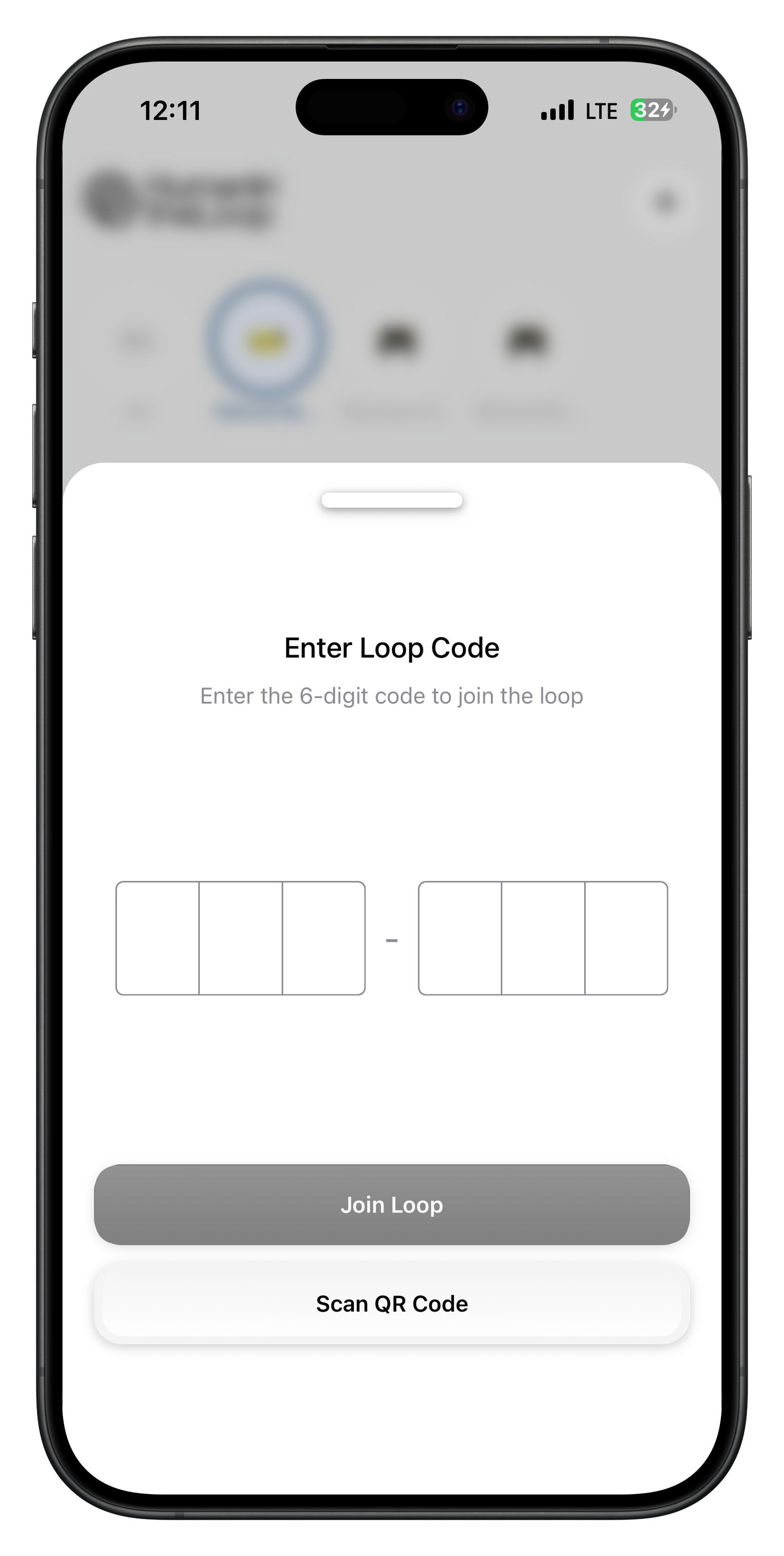 Enter a 6-digit loop code to join
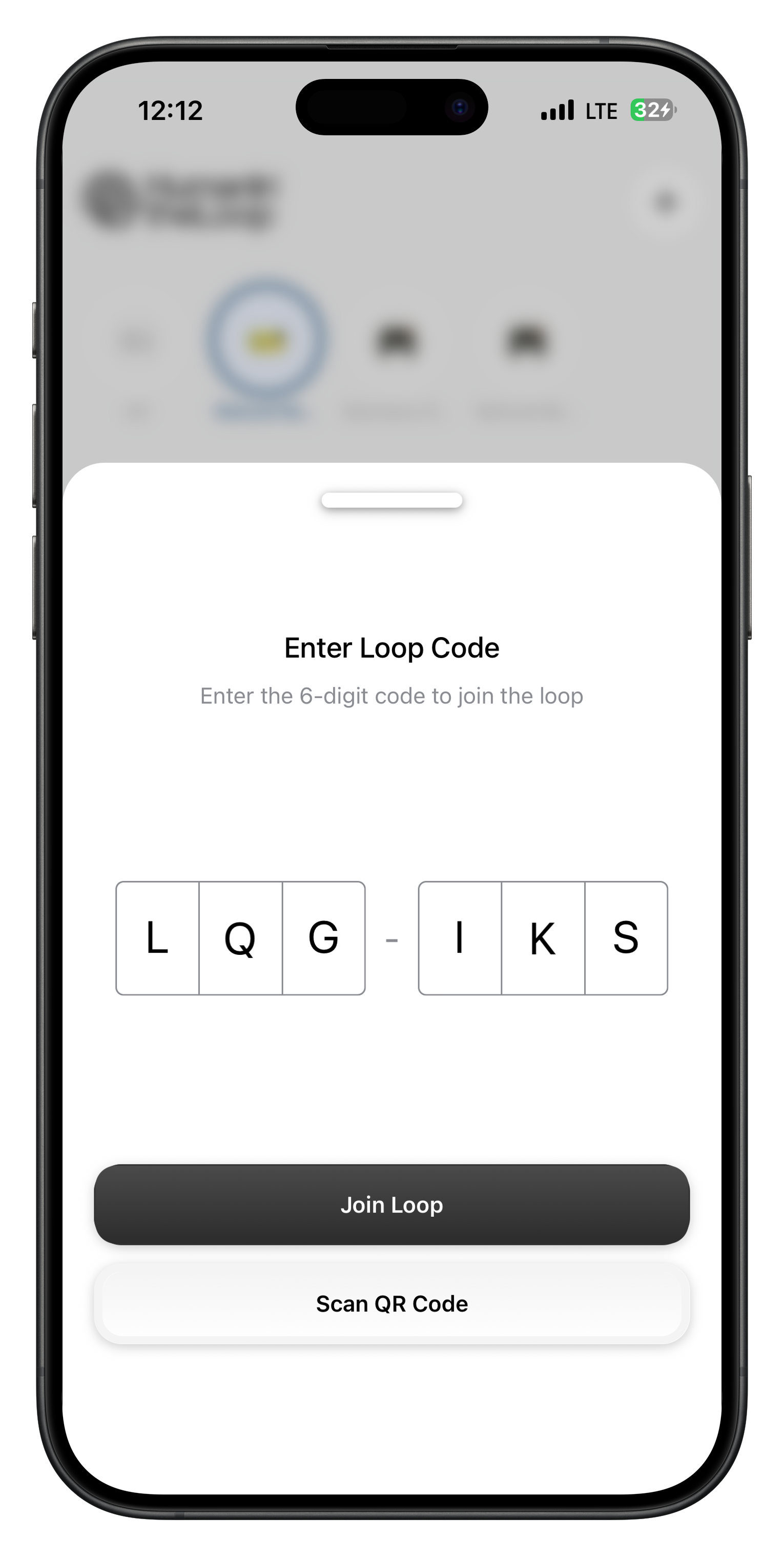 View loop details before joining
**Join Methods Available:**
* **Loop Code**: Enter a 6-digit code provided by the loop administrator
* **QR Code Scan**: Use your camera to scan a QR code
* **Direct Links**: Tap invitation links shared via email or messaging
* **Social Sign-in**: Continue with Google, Apple, or email authentication
Invitations typically expire after 7 days. If your invitation expires, contact the loop administrator for a new one.
### Alternative Invitation Methods
Some loops may use different invitation methods:
Click a shared link to join immediately.
Scan a QR code with your mobile device.
Enter a unique code in the mobile app.
Administrator adds you directly to the loop.
## Step 2: Install and Open the App
### Download the App
1. Open the App Store on your iPhone or iPad
2. Search for "HITL.sh"
3. Tap "Get" or "Install"
4. Wait for the download to complete
1. Open the Google Play Store on your device
2. Search for "HITL.sh"
3. Tap "Install"
4. Wait for the download to complete
### First Launch
Tap the HITL.sh icon on your home screen.
Grant necessary permissions for notifications and internet access.
Review the app introduction and tap "Get Started".
## Step 3: Accept the Invitation
### Using the Invitation Link
Open the invitation email and tap the "Join Loop" button.
The link will automatically open the HITL.sh mobile app.
Review the loop details and tap "Accept Invitation".
### Using QR Code Scanning
Scan a QR code to instantly join a loop:
View loop details before joining
**Join Methods Available:**
* **Loop Code**: Enter a 6-digit code provided by the loop administrator
* **QR Code Scan**: Use your camera to scan a QR code
* **Direct Links**: Tap invitation links shared via email or messaging
* **Social Sign-in**: Continue with Google, Apple, or email authentication
Invitations typically expire after 7 days. If your invitation expires, contact the loop administrator for a new one.
### Alternative Invitation Methods
Some loops may use different invitation methods:
Click a shared link to join immediately.
Scan a QR code with your mobile device.
Enter a unique code in the mobile app.
Administrator adds you directly to the loop.
## Step 2: Install and Open the App
### Download the App
1. Open the App Store on your iPhone or iPad
2. Search for "HITL.sh"
3. Tap "Get" or "Install"
4. Wait for the download to complete
1. Open the Google Play Store on your device
2. Search for "HITL.sh"
3. Tap "Install"
4. Wait for the download to complete
### First Launch
Tap the HITL.sh icon on your home screen.
Grant necessary permissions for notifications and internet access.
Review the app introduction and tap "Get Started".
## Step 3: Accept the Invitation
### Using the Invitation Link
Open the invitation email and tap the "Join Loop" button.
The link will automatically open the HITL.sh mobile app.
Review the loop details and tap "Accept Invitation".
### Using QR Code Scanning
Scan a QR code to instantly join a loop:
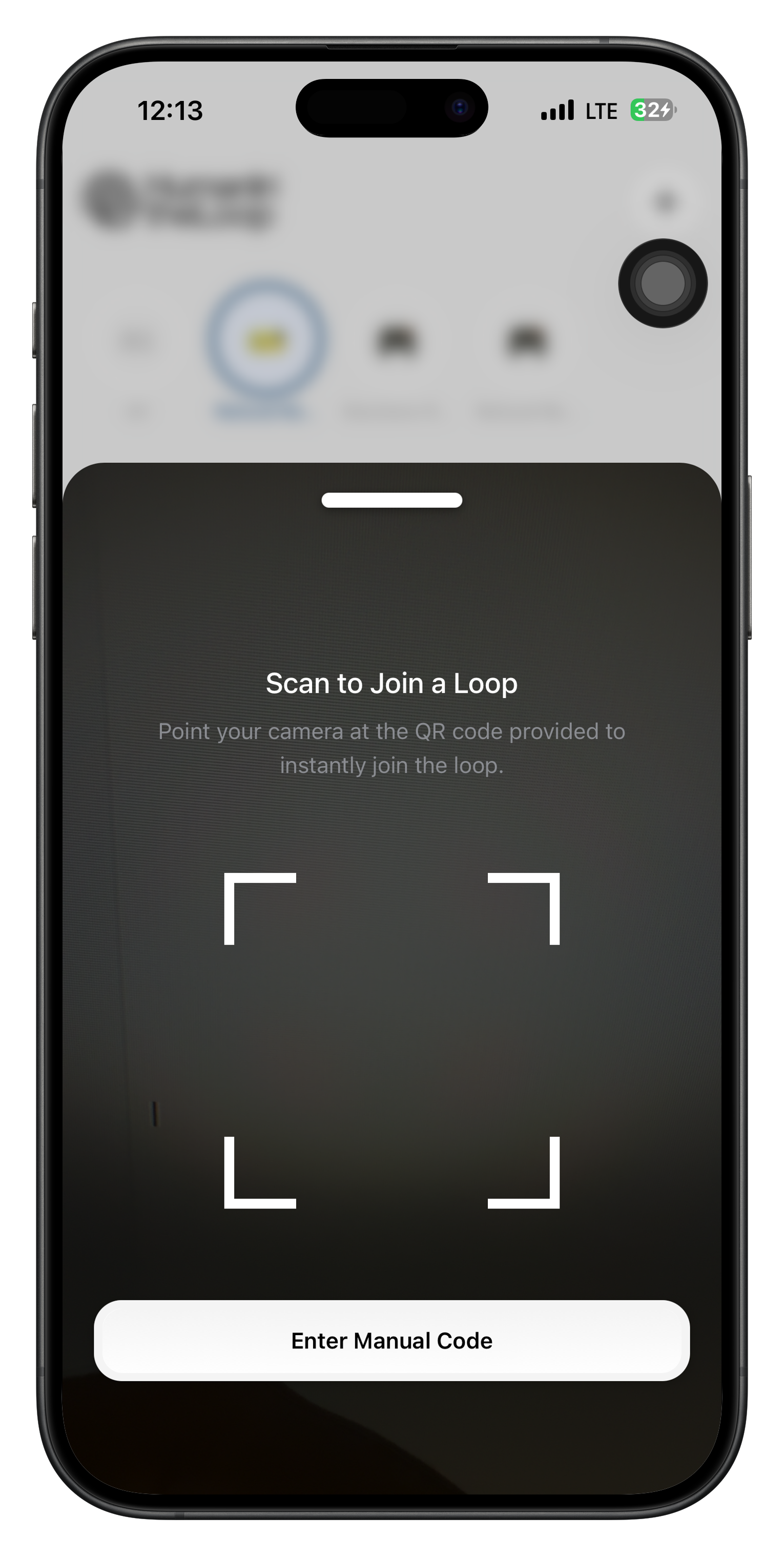 Tap "Scan QR Code" from the join loop screen.
Point your camera at the QR code provided by the loop administrator.
The app will automatically detect and join the loop.
### Authentication Required
Before joining loops, you'll need to authenticate:
Tap "Scan QR Code" from the join loop screen.
Point your camera at the QR code provided by the loop administrator.
The app will automatically detect and join the loop.
### Authentication Required
Before joining loops, you'll need to authenticate:
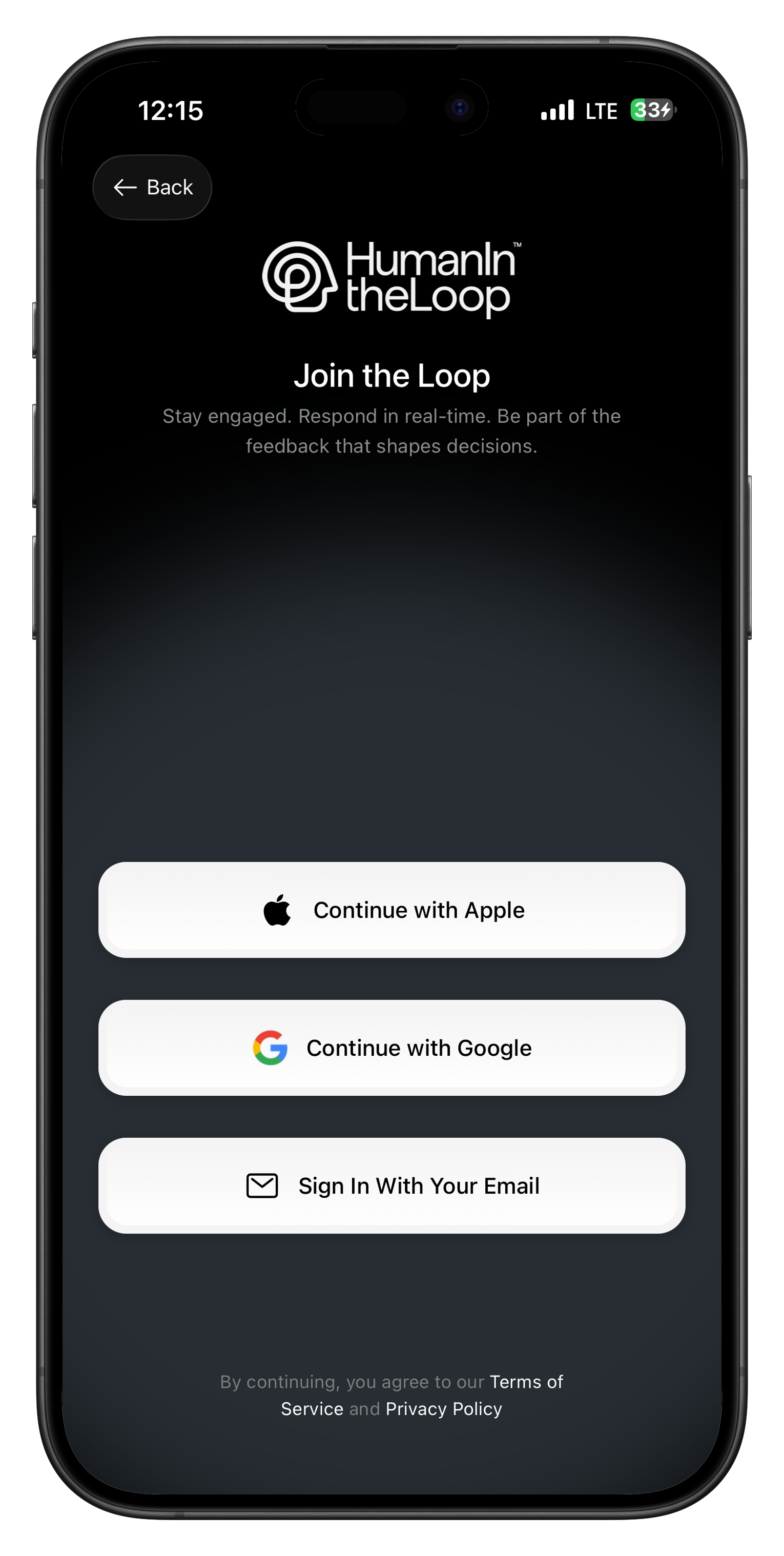 **Available Sign-in Methods:**
* **Continue with Apple**: Use your Apple ID for quick authentication
* **Continue with Google**: Sign in with your Google account
* **Sign In With Your Email**: Use traditional email/password authentication
## Step 4: Complete Your Profile
### Basic Information
Set up your reviewer profile:
* **Full Name**: Your complete name as it should appear
* **Email**: Your email address for notifications
* **Phone**: Optional phone number for urgent alerts
* **Profile Photo**: Upload a professional photo (optional)
* **Primary Skills**: Your main areas of expertise
* **Secondary Skills**: Additional skills and knowledge
* **Experience Level**: Years of experience in relevant fields
* **Languages**: Languages you can review content in
* **Time Zone**: Your current time zone
* **Working Hours**: When you're typically available
* **Response Preferences**: How quickly you can respond
* **Notification Settings**: How you want to be notified
### Skills Assessment
Some loops may require a skills assessment:
* **Content Moderation**: Review sample content for policy violations
* **Quality Assurance**: Evaluate content for accuracy and completeness
* **Compliance Review**: Assess documents for regulatory requirements
* **Technical Review**: Evaluate technical content and code
Skills assessments help ensure you're assigned appropriate requests and help you understand the review criteria.
## Step 5: Review Loop Guidelines
### Loop Overview
Understand what you're joining:
**Available Sign-in Methods:**
* **Continue with Apple**: Use your Apple ID for quick authentication
* **Continue with Google**: Sign in with your Google account
* **Sign In With Your Email**: Use traditional email/password authentication
## Step 4: Complete Your Profile
### Basic Information
Set up your reviewer profile:
* **Full Name**: Your complete name as it should appear
* **Email**: Your email address for notifications
* **Phone**: Optional phone number for urgent alerts
* **Profile Photo**: Upload a professional photo (optional)
* **Primary Skills**: Your main areas of expertise
* **Secondary Skills**: Additional skills and knowledge
* **Experience Level**: Years of experience in relevant fields
* **Languages**: Languages you can review content in
* **Time Zone**: Your current time zone
* **Working Hours**: When you're typically available
* **Response Preferences**: How quickly you can respond
* **Notification Settings**: How you want to be notified
### Skills Assessment
Some loops may require a skills assessment:
* **Content Moderation**: Review sample content for policy violations
* **Quality Assurance**: Evaluate content for accuracy and completeness
* **Compliance Review**: Assess documents for regulatory requirements
* **Technical Review**: Evaluate technical content and code
Skills assessments help ensure you're assigned appropriate requests and help you understand the review criteria.
## Step 5: Review Loop Guidelines
### Loop Overview
Understand what you're joining:
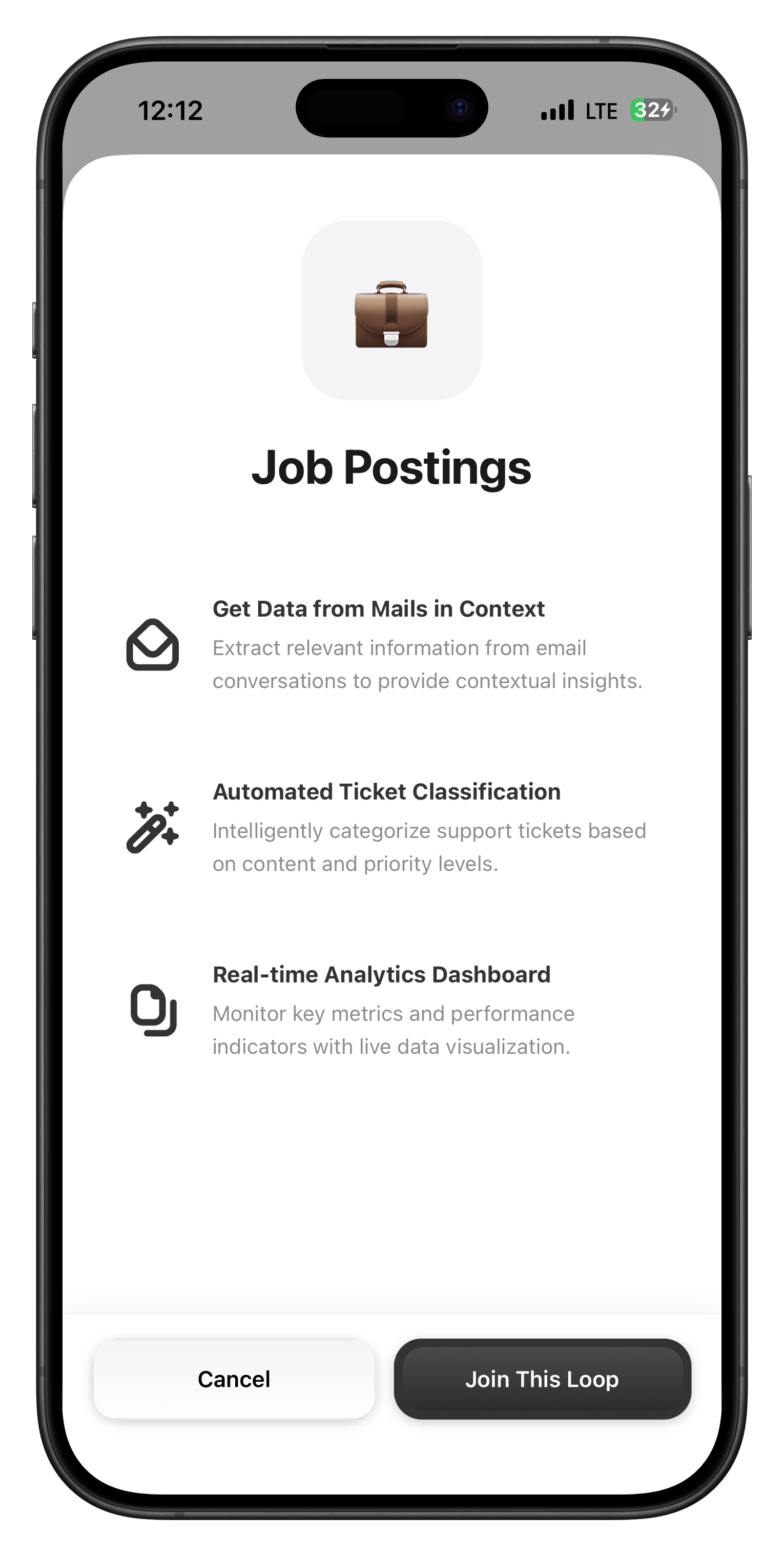 **Key Information:**
* **Loop Purpose**: What types of content are reviewed
* **Review Criteria**: Standards and guidelines for decisions
* **Response Options**: Available decision choices
* **Time Expectations**: Expected response times and deadlines
### Review Guidelines
Study the specific guidelines for your loop:
* What constitutes acceptable content
* Common policy violations
* Quality requirements
* Cultural considerations
* When to approve content
* When to reject content
* When to request changes
* When to escalate issues
* Required reasoning for decisions
* Optional feedback fields
* Escalation procedures
* Communication guidelines
* Sample approved content
* Sample rejected content
* Edge case scenarios
* Common mistakes to avoid
## Step 6: Complete Training
### Training Modules
Most loops include training materials:
Read through all policy documents and guidelines.
Complete sample reviews to test your understanding.
Receive feedback on your practice reviews.
Pass a final assessment to demonstrate readiness.
### Training Resources
* **Video Tutorials**: Step-by-step review demonstrations
* **Policy Documents**: Detailed guidelines and procedures
* **FAQ Section**: Common questions and answers
* **Contact Information**: How to get help when needed
## Step 7: Start Reviewing
### First Request
Once you're approved, you'll receive your first request:
Receive a push notification about a new request.
Examine the content and context carefully.
Choose the appropriate response option.
Explain your decision with clear reasoning.
Submit your decision to complete the review.
### Getting Help
Don't hesitate to ask for assistance:
Ask questions in the team discussion channel.
Contact your supervisor for guidance.
Reference the help section and guidelines.
Escalate complex requests when needed.
## Troubleshooting
### Common Issues
* Check if the invitation has expired
* Ensure you're using the correct device
* Try copying and pasting the link
* Contact the loop administrator
* Check device compatibility
* Ensure sufficient storage space
* Try restarting your device
* Contact app store support
* Check internet connection
* Try refreshing the app
* Clear app cache and restart
* Contact technical support
* Check internet connection
* Try accessing from different network
* Clear browser cache if using web version
* Contact training administrator
## Best Practices
### Getting Started
Don't rush through training - understanding is crucial.
Clarify any unclear guidelines or procedures.
Complete practice reviews to build confidence.
Stick to established policies and procedures.
### Ongoing Success
Keep up with policy changes and updates.
Ask for feedback on your review quality.
Use feedback to improve your decision-making.
Support team members and share knowledge.
## Next Steps
Congratulations! You're now part of a HITL.sh review loop. Here's what to do next:
Navigate the app interface and view pending requests.
Learn how to provide effective responses to requests.
Study your loop's specific guidelines and policies.
Introduce yourself and connect with fellow reviewers.
**Key Information:**
* **Loop Purpose**: What types of content are reviewed
* **Review Criteria**: Standards and guidelines for decisions
* **Response Options**: Available decision choices
* **Time Expectations**: Expected response times and deadlines
### Review Guidelines
Study the specific guidelines for your loop:
* What constitutes acceptable content
* Common policy violations
* Quality requirements
* Cultural considerations
* When to approve content
* When to reject content
* When to request changes
* When to escalate issues
* Required reasoning for decisions
* Optional feedback fields
* Escalation procedures
* Communication guidelines
* Sample approved content
* Sample rejected content
* Edge case scenarios
* Common mistakes to avoid
## Step 6: Complete Training
### Training Modules
Most loops include training materials:
Read through all policy documents and guidelines.
Complete sample reviews to test your understanding.
Receive feedback on your practice reviews.
Pass a final assessment to demonstrate readiness.
### Training Resources
* **Video Tutorials**: Step-by-step review demonstrations
* **Policy Documents**: Detailed guidelines and procedures
* **FAQ Section**: Common questions and answers
* **Contact Information**: How to get help when needed
## Step 7: Start Reviewing
### First Request
Once you're approved, you'll receive your first request:
Receive a push notification about a new request.
Examine the content and context carefully.
Choose the appropriate response option.
Explain your decision with clear reasoning.
Submit your decision to complete the review.
### Getting Help
Don't hesitate to ask for assistance:
Ask questions in the team discussion channel.
Contact your supervisor for guidance.
Reference the help section and guidelines.
Escalate complex requests when needed.
## Troubleshooting
### Common Issues
* Check if the invitation has expired
* Ensure you're using the correct device
* Try copying and pasting the link
* Contact the loop administrator
* Check device compatibility
* Ensure sufficient storage space
* Try restarting your device
* Contact app store support
* Check internet connection
* Try refreshing the app
* Clear app cache and restart
* Contact technical support
* Check internet connection
* Try accessing from different network
* Clear browser cache if using web version
* Contact training administrator
## Best Practices
### Getting Started
Don't rush through training - understanding is crucial.
Clarify any unclear guidelines or procedures.
Complete practice reviews to build confidence.
Stick to established policies and procedures.
### Ongoing Success
Keep up with policy changes and updates.
Ask for feedback on your review quality.
Use feedback to improve your decision-making.
Support team members and share knowledge.
## Next Steps
Congratulations! You're now part of a HITL.sh review loop. Here's what to do next:
Navigate the app interface and view pending requests.
Learn how to provide effective responses to requests.
Study your loop's specific guidelines and policies.
Introduce yourself and connect with fellow reviewers.