> ## Documentation Index
> Fetch the complete documentation index at: https://docs.hitl.sh/llms.txt
> Use this file to discover all available pages before exploring further.
# Zapier Integration
> Connect HITL.sh with 7,000+ apps using Zapier's no-code automation platform for seamless human-in-the-loop workflows
# Zapier Integration
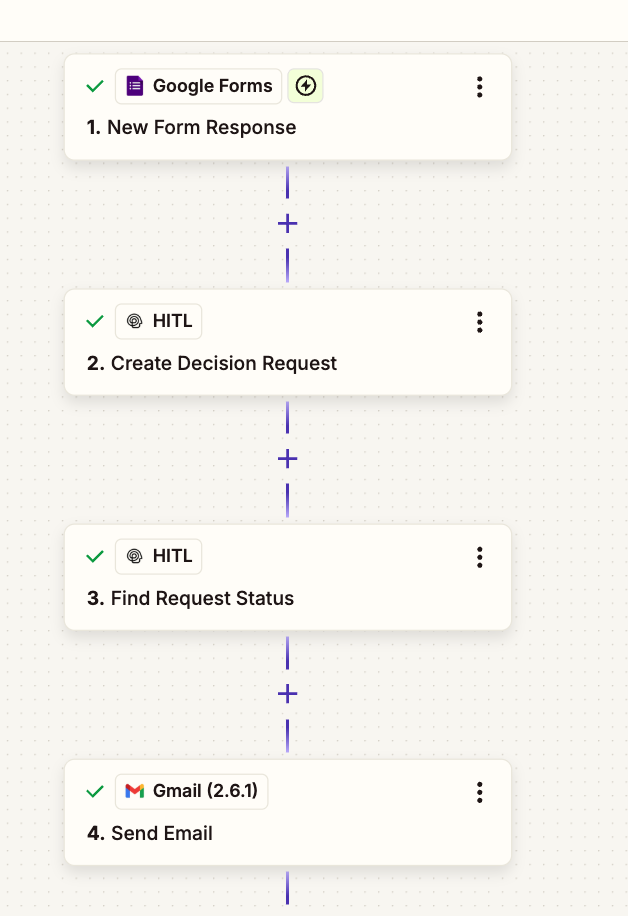
Integrate HITL.sh with Zapier to connect human decision-making with over 7,000 apps and services. Perfect for teams who want powerful automation without writing code.
Before configuring Zapier, install the HITL.sh mobile app ([App Store](https://apps.apple.com/us/app/hitl-human-in-the-loop/id6752878072) | [Google Play](https://play.google.com/store/apps/details?id=hitl.sh.app)) since it's an integral part of the setup.
 ## Why Use Zapier with HITL.sh?
Connect HITL.sh with popular tools like Gmail, Slack, Google Sheets, Airtable, and more
Build powerful workflows without writing a single line of code using visual interface
Create complex automation sequences with conditional logic and multiple actions
Get started in minutes with pre-built templates and intuitive configuration
## Available Actions
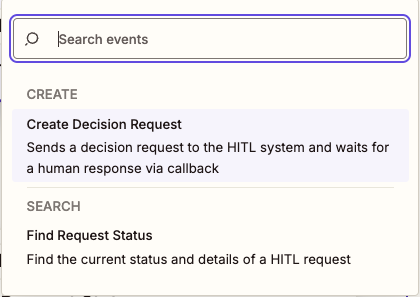
HITL.sh provides two powerful actions in Zapier:
### Create Request Action
Submit content for human review directly from your Zaps:
## Why Use Zapier with HITL.sh?
Connect HITL.sh with popular tools like Gmail, Slack, Google Sheets, Airtable, and more
Build powerful workflows without writing a single line of code using visual interface
Create complex automation sequences with conditional logic and multiple actions
Get started in minutes with pre-built templates and intuitive configuration
## Available Actions
HITL.sh provides two powerful actions in Zapier:
### Create Request Action
Submit content for human review directly from your Zaps:
 **Use Cases:**
* Content moderation from form submissions
* Approval workflows from CRM updates
* Quality checks from data entries
* Escalation from support tickets
Search for "HITL.sh" and select "Create Request" action
Connect your HITL.sh account using your API key
**Use Cases:**
* Content moderation from form submissions
* Approval workflows from CRM updates
* Quality checks from data entries
* Escalation from support tickets
Search for "HITL.sh" and select "Create Request" action
Connect your HITL.sh account using your API key
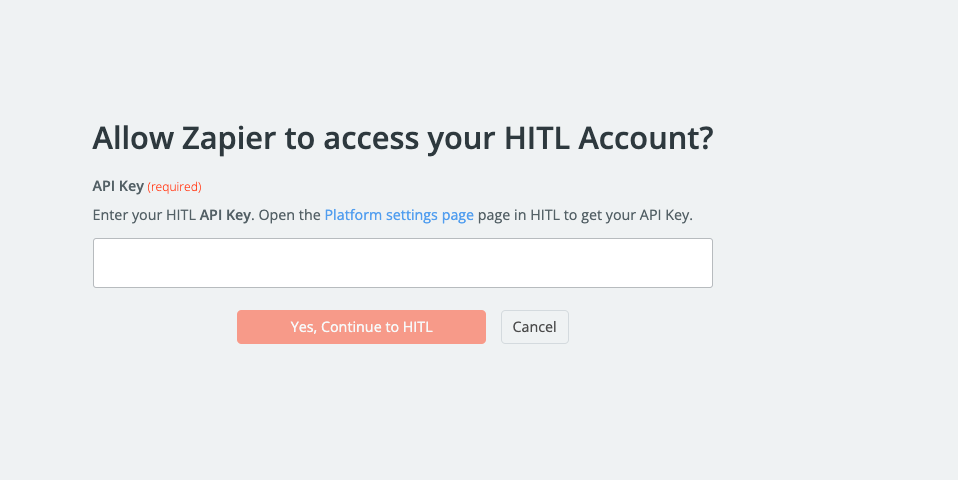 Set up your request parameters
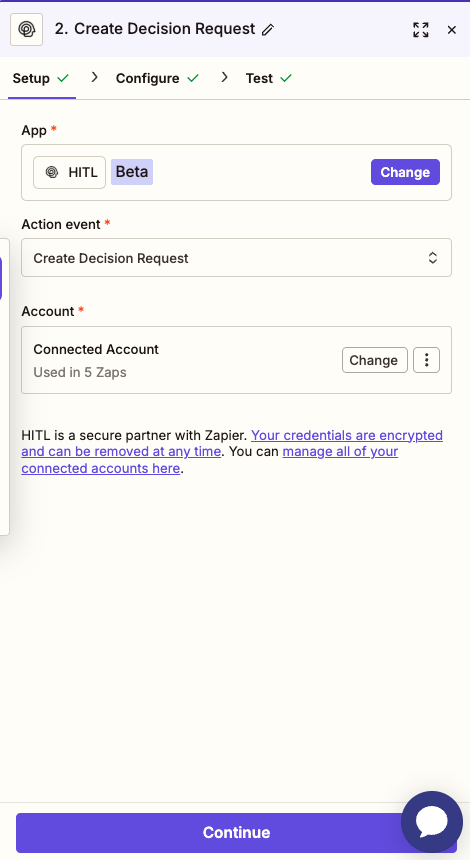
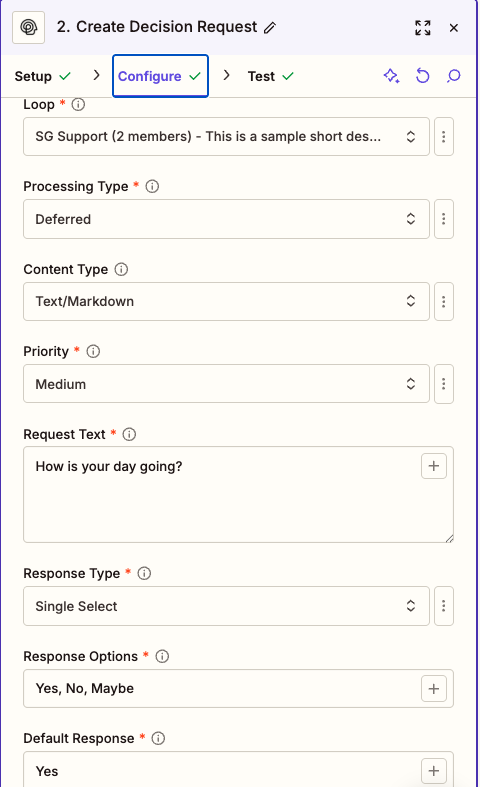 Test your Zap and turn it on to start automating
### Get Request Status Action
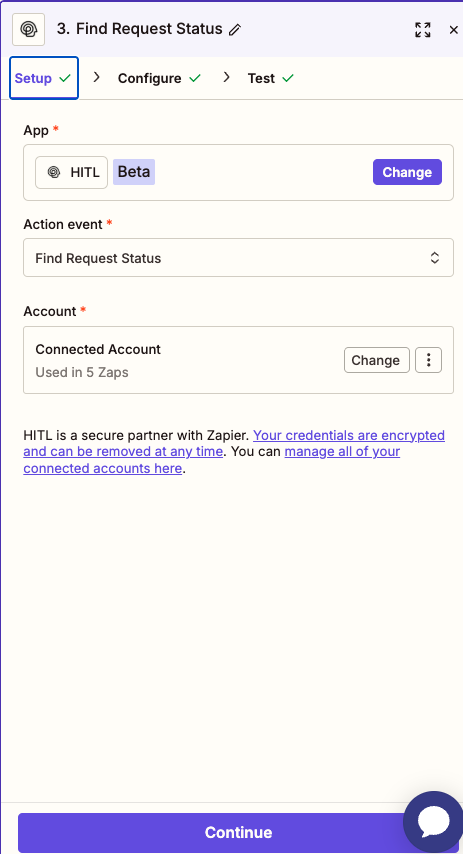
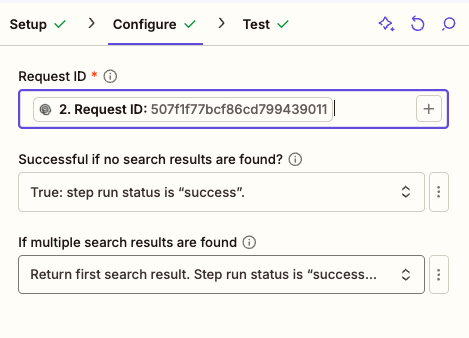
Retrieve the status and response data of a submitted request:
Test your Zap and turn it on to start automating
### Get Request Status Action
Retrieve the status and response data of a submitted request:
 **Use Cases:**
* Poll for completed reviews
* Update databases with reviewer decisions
* Trigger follow-up actions based on responses
* Generate reports from review outcomes
The workflow waits for the human to answer before ending the execution using polling.
## Supported Response Types
Configure how reviewers respond to your requests:
Free-form text with character validation:
**Configuration:**
```json theme={null}
{
"response_type": "text",
"response_config": {
"placeholder": "Enter feedback...",
"min_length": 10,
"max_length": 1000
}
}
```
**Example Response:** `"The proposal looks solid but needs budget clarification in section 3."`
Choose one option from a list:
**Configuration:**
```json theme={null}
{
"response_type": "single_select",
"response_config": {
"options": ["Approve", "Reject", "Revise"]
}
}
```
**Example Response:** `"approve"`
Choose multiple options:
**Configuration:**
```json theme={null}
{
"response_type": "multi_select",
"response_config": {
"options": ["Accuracy", "Tone", "Grammar", "Formatting"],
"max_selections": 3
}
}
```
**Example Response:** `["accuracy", "grammar"]`
Numeric scale rating:
**Configuration:**
```json theme={null}
{
"response_type": "rating",
"response_config": {
"scale_min": 1,
"scale_max": 5,
"scale_step": 0.5
}
}
```
**Example Response:** `4.5`
Numeric input with validation:
**Configuration:**
```json theme={null}
{
"response_type": "number",
"response_config": {
"min_value": 0,
"max_value": 1000,
"decimal_places": 2
}
}
```
**Example Response:** `149.99`
Simple yes/no decision:
**Configuration:**
```json theme={null}
{
"response_type": "boolean",
"response_config": {
"true_label": "Approved",
"false_label": "Rejected"
}
}
```
**Example Response:** `true`
## Request Configuration
### Required Fields
The unique identifier of your HITL loop
The content or question for reviewers
Choose from: text, single\_select, multi\_select, rating, number, boolean
Configuration object for your chosen response type
### Optional Fields
`time-sensitive` (urgent) or `deferred` (non-urgent)
Priority level: `low`, `medium`, `high`, or `critical`
Time limit before default response is used (60-86400 seconds)
Fallback value if request times out
Additional metadata in JSON format
## Status Codes
When retrieving request status, you'll receive one of four status codes:
Waiting for reviewer response
Reviewer has submitted response
Request timed out, default response applied
Request was cancelled before completion
## Example Workflows
### Content Approval from Google Forms
Automatically send form submissions for human review:
**Trigger:** New Google Forms Response
**Action 1:** HITL.sh Create Request
```
Loop ID: content_review
Request Text: {{Form Response}}
Response Type: single_select
Options: Approve, Reject, Needs Changes
Priority: high
```
**Action 2:** Send Email (based on response)
**Action 3:** Update Google Sheet with decision
### Slack Message Moderation
Monitor Slack channels and flag inappropriate content:
**Trigger:** New Message Posted in Slack
**Filter:** Message contains flagged keywords
**Action 1:** HITL.sh Create Request
```
Request Text: Review this Slack message: {{Message Text}}
Response Type: single_select
Options: Allow, Remove, Warn User
Context: {"channel": "{{Channel}}", "user": "{{User ID}}"}
```
**Action 2:** Slack - Delete Message (if "Remove")
**Action 3:** Slack - Send DM to User (if "Warn User")
### Customer Refund Workflow
Handle refund requests with human oversight:
**Trigger:** New Row in Airtable (Refund Requests)
**Filter:** Amount > \$100
**Action 1:** HITL.sh Create Request
```
Request Text: Refund request for ${{Amount}}
Reason: {{Reason}}
Customer: {{Customer Name}} ({{Customer ID}})
Response Type: single_select
Options: Approve Full, Approve Partial, Deny, Escalate
Priority: {{Amount > 500 ? "high" : "medium"}}
```
**Action 2:** Update Airtable with decision
**Action 3:** Send confirmation email
**Action 4:** Process refund (if approved)
## Using Paths for Conditional Logic
Zapier Paths allow you to handle different response types:
```
├─ Path A: If response = "approve"
│ └─ Send approval email
│ └─ Update database status
│ └─ Post to Slack channel
│
├─ Path B: If response = "reject"
│ └─ Send rejection email
│ └─ Archive submission
│ └─ Log for review
│
└─ Path C: If response = "escalate"
└─ Notify management
└─ Create high-priority ticket
└─ Send urgent Slack message
```
## Best Practices
Always test your Zaps with sample data before going live
Add filters to control when requests are created
Set up error notifications to catch failed Zaps
Track your Zapier task usage to stay within limits
## Troubleshooting
**Solution:**
* Verify API key is correct
* Regenerate API key if needed
* Check API key permissions in HITL dashboard
**Solution:**
* Confirm loop exists in your HITL dashboard
* Copy Loop ID directly from loop settings
* Check for extra spaces in the field
**Solution:**
* Check trigger conditions are met
* Verify Zap is turned ON
* Review Zap history for errors
* Test trigger manually
## Pricing Considerations
Zapier integration uses your Zapier task quota. Each action (Create Request, Get Status) counts as one task. The workflow uses polling to wait for human responses before ending execution.
## Next Steps
Explore n8n for more advanced automation capabilities
Learn about Make.com with webhook triggers
View complete API documentation
Browse Zapier templates shared by the community
**Use Cases:**
* Poll for completed reviews
* Update databases with reviewer decisions
* Trigger follow-up actions based on responses
* Generate reports from review outcomes
The workflow waits for the human to answer before ending the execution using polling.
## Supported Response Types
Configure how reviewers respond to your requests:
Free-form text with character validation:
**Configuration:**
```json theme={null}
{
"response_type": "text",
"response_config": {
"placeholder": "Enter feedback...",
"min_length": 10,
"max_length": 1000
}
}
```
**Example Response:** `"The proposal looks solid but needs budget clarification in section 3."`
Choose one option from a list:
**Configuration:**
```json theme={null}
{
"response_type": "single_select",
"response_config": {
"options": ["Approve", "Reject", "Revise"]
}
}
```
**Example Response:** `"approve"`
Choose multiple options:
**Configuration:**
```json theme={null}
{
"response_type": "multi_select",
"response_config": {
"options": ["Accuracy", "Tone", "Grammar", "Formatting"],
"max_selections": 3
}
}
```
**Example Response:** `["accuracy", "grammar"]`
Numeric scale rating:
**Configuration:**
```json theme={null}
{
"response_type": "rating",
"response_config": {
"scale_min": 1,
"scale_max": 5,
"scale_step": 0.5
}
}
```
**Example Response:** `4.5`
Numeric input with validation:
**Configuration:**
```json theme={null}
{
"response_type": "number",
"response_config": {
"min_value": 0,
"max_value": 1000,
"decimal_places": 2
}
}
```
**Example Response:** `149.99`
Simple yes/no decision:
**Configuration:**
```json theme={null}
{
"response_type": "boolean",
"response_config": {
"true_label": "Approved",
"false_label": "Rejected"
}
}
```
**Example Response:** `true`
## Request Configuration
### Required Fields
The unique identifier of your HITL loop
The content or question for reviewers
Choose from: text, single\_select, multi\_select, rating, number, boolean
Configuration object for your chosen response type
### Optional Fields
`time-sensitive` (urgent) or `deferred` (non-urgent)
Priority level: `low`, `medium`, `high`, or `critical`
Time limit before default response is used (60-86400 seconds)
Fallback value if request times out
Additional metadata in JSON format
## Status Codes
When retrieving request status, you'll receive one of four status codes:
Waiting for reviewer response
Reviewer has submitted response
Request timed out, default response applied
Request was cancelled before completion
## Example Workflows
### Content Approval from Google Forms
Automatically send form submissions for human review:
**Trigger:** New Google Forms Response
**Action 1:** HITL.sh Create Request
```
Loop ID: content_review
Request Text: {{Form Response}}
Response Type: single_select
Options: Approve, Reject, Needs Changes
Priority: high
```
**Action 2:** Send Email (based on response)
**Action 3:** Update Google Sheet with decision
### Slack Message Moderation
Monitor Slack channels and flag inappropriate content:
**Trigger:** New Message Posted in Slack
**Filter:** Message contains flagged keywords
**Action 1:** HITL.sh Create Request
```
Request Text: Review this Slack message: {{Message Text}}
Response Type: single_select
Options: Allow, Remove, Warn User
Context: {"channel": "{{Channel}}", "user": "{{User ID}}"}
```
**Action 2:** Slack - Delete Message (if "Remove")
**Action 3:** Slack - Send DM to User (if "Warn User")
### Customer Refund Workflow
Handle refund requests with human oversight:
**Trigger:** New Row in Airtable (Refund Requests)
**Filter:** Amount > \$100
**Action 1:** HITL.sh Create Request
```
Request Text: Refund request for ${{Amount}}
Reason: {{Reason}}
Customer: {{Customer Name}} ({{Customer ID}})
Response Type: single_select
Options: Approve Full, Approve Partial, Deny, Escalate
Priority: {{Amount > 500 ? "high" : "medium"}}
```
**Action 2:** Update Airtable with decision
**Action 3:** Send confirmation email
**Action 4:** Process refund (if approved)
## Using Paths for Conditional Logic
Zapier Paths allow you to handle different response types:
```
├─ Path A: If response = "approve"
│ └─ Send approval email
│ └─ Update database status
│ └─ Post to Slack channel
│
├─ Path B: If response = "reject"
│ └─ Send rejection email
│ └─ Archive submission
│ └─ Log for review
│
└─ Path C: If response = "escalate"
└─ Notify management
└─ Create high-priority ticket
└─ Send urgent Slack message
```
## Best Practices
Always test your Zaps with sample data before going live
Add filters to control when requests are created
Set up error notifications to catch failed Zaps
Track your Zapier task usage to stay within limits
## Troubleshooting
**Solution:**
* Verify API key is correct
* Regenerate API key if needed
* Check API key permissions in HITL dashboard
**Solution:**
* Confirm loop exists in your HITL dashboard
* Copy Loop ID directly from loop settings
* Check for extra spaces in the field
**Solution:**
* Check trigger conditions are met
* Verify Zap is turned ON
* Review Zap history for errors
* Test trigger manually
## Pricing Considerations
Zapier integration uses your Zapier task quota. Each action (Create Request, Get Status) counts as one task. The workflow uses polling to wait for human responses before ending execution.
## Next Steps
Explore n8n for more advanced automation capabilities
Learn about Make.com with webhook triggers
View complete API documentation
Browse Zapier templates shared by the community