> ## Documentation Index
> Fetch the complete documentation index at: https://docs.hitl.sh/llms.txt
> Use this file to discover all available pages before exploring further.
# Make Integration
> Build powerful visual automation scenarios with Make.com and HITL.sh, featuring real-time webhook triggers and advanced routing
# Make Integration
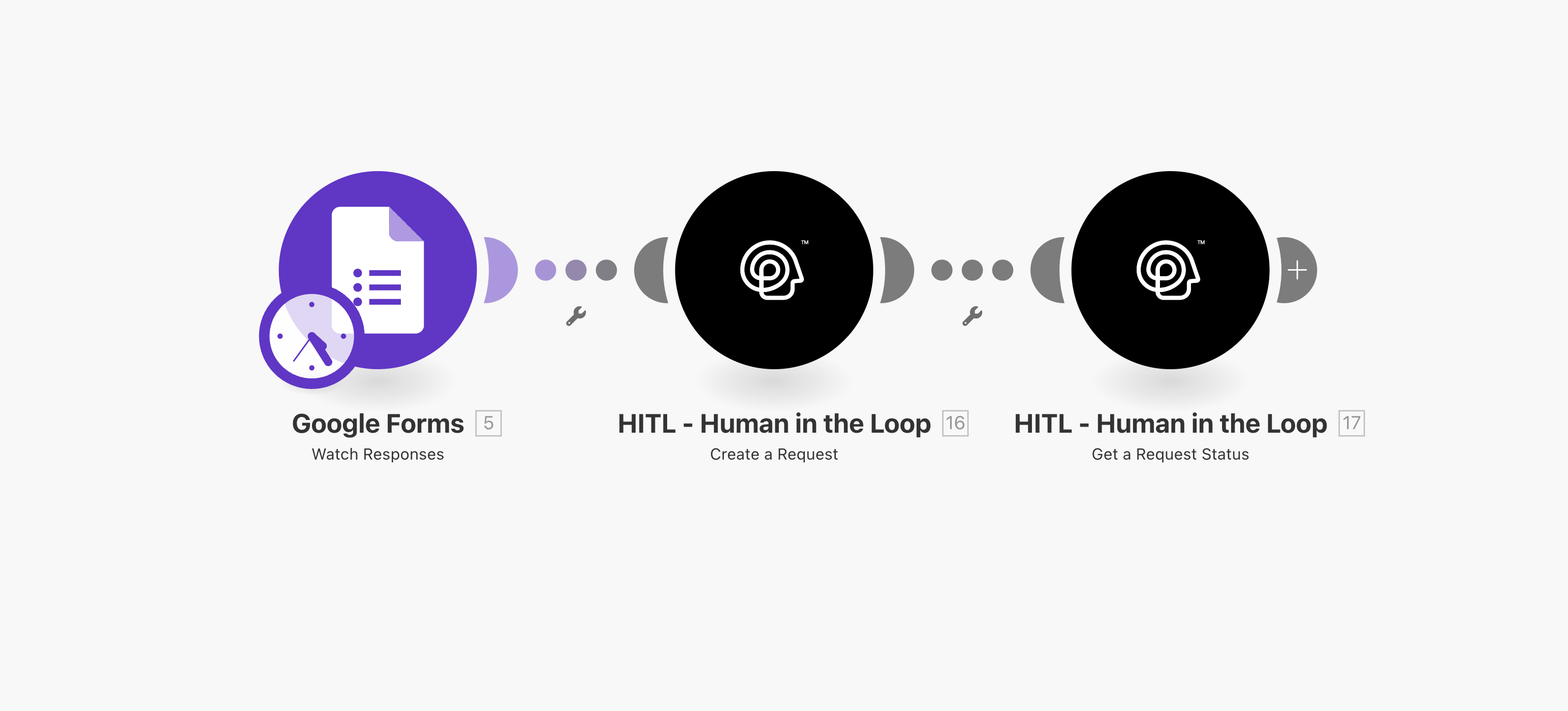
Integrate HITL.sh with Make.com (formerly Integromat) to create sophisticated automation scenarios with visual workflow design and real-time webhook triggers.
Before configuring Make, install the HITL.sh mobile app ([App Store](https://apps.apple.com/us/app/hitl-human-in-the-loop/id6752878072) | [Google Play](https://play.google.com/store/apps/details?id=hitl.sh.app)) since it's an integral part of the setup.
 ## Why Use Make with HITL.sh?
Design complex automation with an intuitive drag-and-drop visual interface
Unique webhook trigger module for instant notifications when reviews complete
Powerful data transformation and mapping between services
Connect with Google Workspace, databases, CRMs, and countless other services
## Available Modules
HITL.sh provides four powerful modules in Make.com:
Submit content for human review:
**Use Cases:**
* Content moderation workflows
* Approval processes
* Quality assurance checks
* Escalation routing
**Required Fields:**
* Loop ID
* Request Text
* Response Type
* Response Config
**Optional Fields:**
* Processing Type
* Priority
* Timeout
* Context
* Callback URL
Retrieve current status and response data:
**Use Cases:**
* Polling for completed reviews
* Status monitoring
* Progress tracking
* Data synchronization
**Required Fields:**
* Request ID
**Returns:**
* Status (pending, completed, timeout, cancelled)
* Response data
* Reviewer information
* Timestamps
Direct access to HITL.sh API endpoints:
**Use Cases:**
* Advanced custom operations
* Loop management
* Bulk operations
* Custom integrations
**Features:**
* Full API access
* Custom headers
* Query parameters
* Request body customization
Real-time trigger when requests complete:
**Use Cases:**
* Instant notification workflows
* Real-time dashboards
* Immediate action routing
* Live status updates
**Advantages:**
* No polling required
* Instant execution
* Lower operation usage
* Better performance
This is a unique feature not available in other integration platforms!
## Module Comparison
Choose the right module for your use case:
| Feature | Create Request | Get Status | API Call | Watch Responses |
| --------------------- | ----------------- | -------------- | ------------ | ------------------ |
| **Submit Reviews** | ✅ | ❌ | ✅ | ❌ |
| **Check Status** | ❌ | ✅ | ✅ | ✅ |
| **Real-Time** | ❌ | ❌ | ❌ | ✅ |
| **Custom Operations** | ❌ | ❌ | ✅ | ❌ |
| **Ease of Use** | Easy | Easy | Advanced | Medium |
| **Best For** | Creating requests | Status polling | Advanced use | Real-time triggers |
## Setting Up Authentication
Connect your HITL.sh account to Make:
Add any HITL.sh module to your scenario
Click "Add" next to the Connection field
## Why Use Make with HITL.sh?
Design complex automation with an intuitive drag-and-drop visual interface
Unique webhook trigger module for instant notifications when reviews complete
Powerful data transformation and mapping between services
Connect with Google Workspace, databases, CRMs, and countless other services
## Available Modules
HITL.sh provides four powerful modules in Make.com:
Submit content for human review:
**Use Cases:**
* Content moderation workflows
* Approval processes
* Quality assurance checks
* Escalation routing
**Required Fields:**
* Loop ID
* Request Text
* Response Type
* Response Config
**Optional Fields:**
* Processing Type
* Priority
* Timeout
* Context
* Callback URL
Retrieve current status and response data:
**Use Cases:**
* Polling for completed reviews
* Status monitoring
* Progress tracking
* Data synchronization
**Required Fields:**
* Request ID
**Returns:**
* Status (pending, completed, timeout, cancelled)
* Response data
* Reviewer information
* Timestamps
Direct access to HITL.sh API endpoints:
**Use Cases:**
* Advanced custom operations
* Loop management
* Bulk operations
* Custom integrations
**Features:**
* Full API access
* Custom headers
* Query parameters
* Request body customization
Real-time trigger when requests complete:
**Use Cases:**
* Instant notification workflows
* Real-time dashboards
* Immediate action routing
* Live status updates
**Advantages:**
* No polling required
* Instant execution
* Lower operation usage
* Better performance
This is a unique feature not available in other integration platforms!
## Module Comparison
Choose the right module for your use case:
| Feature | Create Request | Get Status | API Call | Watch Responses |
| --------------------- | ----------------- | -------------- | ------------ | ------------------ |
| **Submit Reviews** | ✅ | ❌ | ✅ | ❌ |
| **Check Status** | ❌ | ✅ | ✅ | ✅ |
| **Real-Time** | ❌ | ❌ | ❌ | ✅ |
| **Custom Operations** | ❌ | ❌ | ✅ | ❌ |
| **Ease of Use** | Easy | Easy | Advanced | Medium |
| **Best For** | Creating requests | Status polling | Advanced use | Real-time triggers |
## Setting Up Authentication
Connect your HITL.sh account to Make:
Add any HITL.sh module to your scenario
Click "Add" next to the Connection field
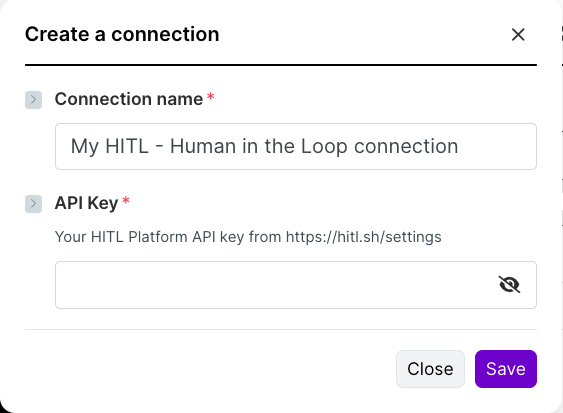 1. Go to your [HITL.sh dashboard](https://my.hitl.sh)
2. Navigate to Settings → API Keys
3. Copy your API key
4. Paste it into the Make connection dialog
Save the connection and test with a simple scenario
## Module Configuration
### Create Request Module
1. Go to your [HITL.sh dashboard](https://my.hitl.sh)
2. Navigate to Settings → API Keys
3. Copy your API key
4. Paste it into the Make connection dialog
Save the connection and test with a simple scenario
## Module Configuration
### Create Request Module
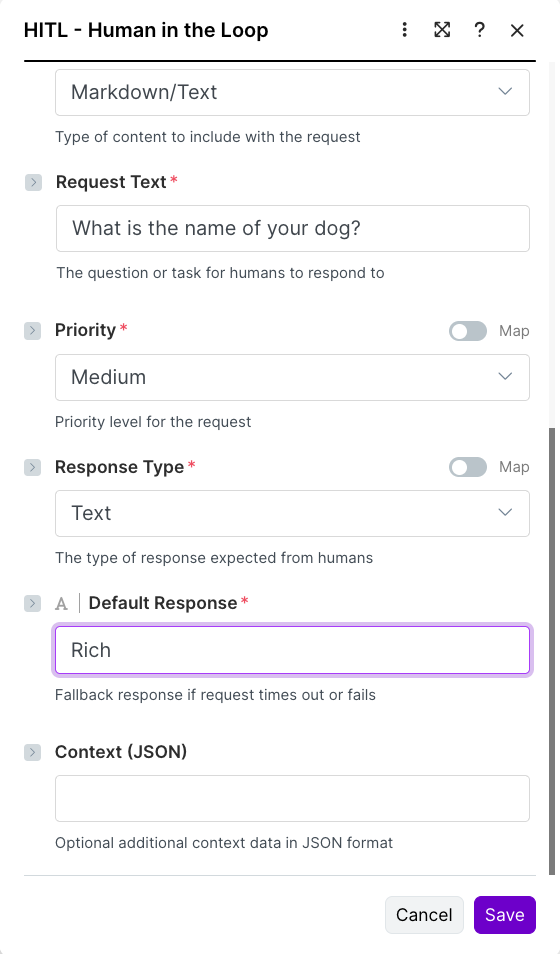 **Configuration Fields:**
Your HITL loop identifier from the dashboard
Content or question for reviewers to evaluate
text | single\_select | multi\_select | rating | number | boolean
JSON configuration for the response type
time-sensitive (default) | deferred
low | medium (default) | high | critical
60-86400 seconds (required for time-sensitive)
Fallback value matching response type format
Additional metadata as JSON object
### Get Request Status Module
**Configuration Fields:**
Your HITL loop identifier from the dashboard
Content or question for reviewers to evaluate
text | single\_select | multi\_select | rating | number | boolean
JSON configuration for the response type
time-sensitive (default) | deferred
low | medium (default) | high | critical
60-86400 seconds (required for time-sensitive)
Fallback value matching response type format
Additional metadata as JSON object
### Get Request Status Module
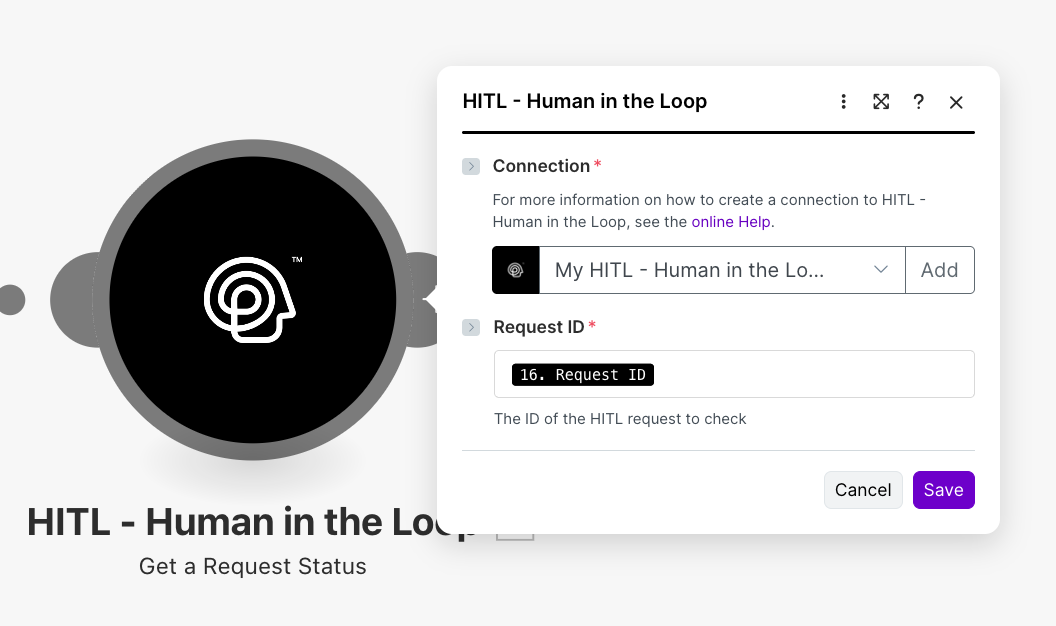 **Configuration Fields:**
The ID returned when creating a request
**Returns:**
```json theme={null}
{
"request_id": "65f1234567890abcdef12348",
"status": "completed",
"priority": "high",
"response_data": "approve",
"response_by_user": {
"id": "65f1234567890abcdef12350",
"name": "John Reviewer",
"email": "john@example.com"
},
"response_time_seconds": 145.5,
"created_at": "2024-03-15T10:30:00Z",
"updated_at": "2024-03-15T10:32:25Z"
}
```
### Make an API Call Module
**Configuration Fields:**
The ID returned when creating a request
**Returns:**
```json theme={null}
{
"request_id": "65f1234567890abcdef12348",
"status": "completed",
"priority": "high",
"response_data": "approve",
"response_by_user": {
"id": "65f1234567890abcdef12350",
"name": "John Reviewer",
"email": "john@example.com"
},
"response_time_seconds": 145.5,
"created_at": "2024-03-15T10:30:00Z",
"updated_at": "2024-03-15T10:32:25Z"
}
```
### Make an API Call Module
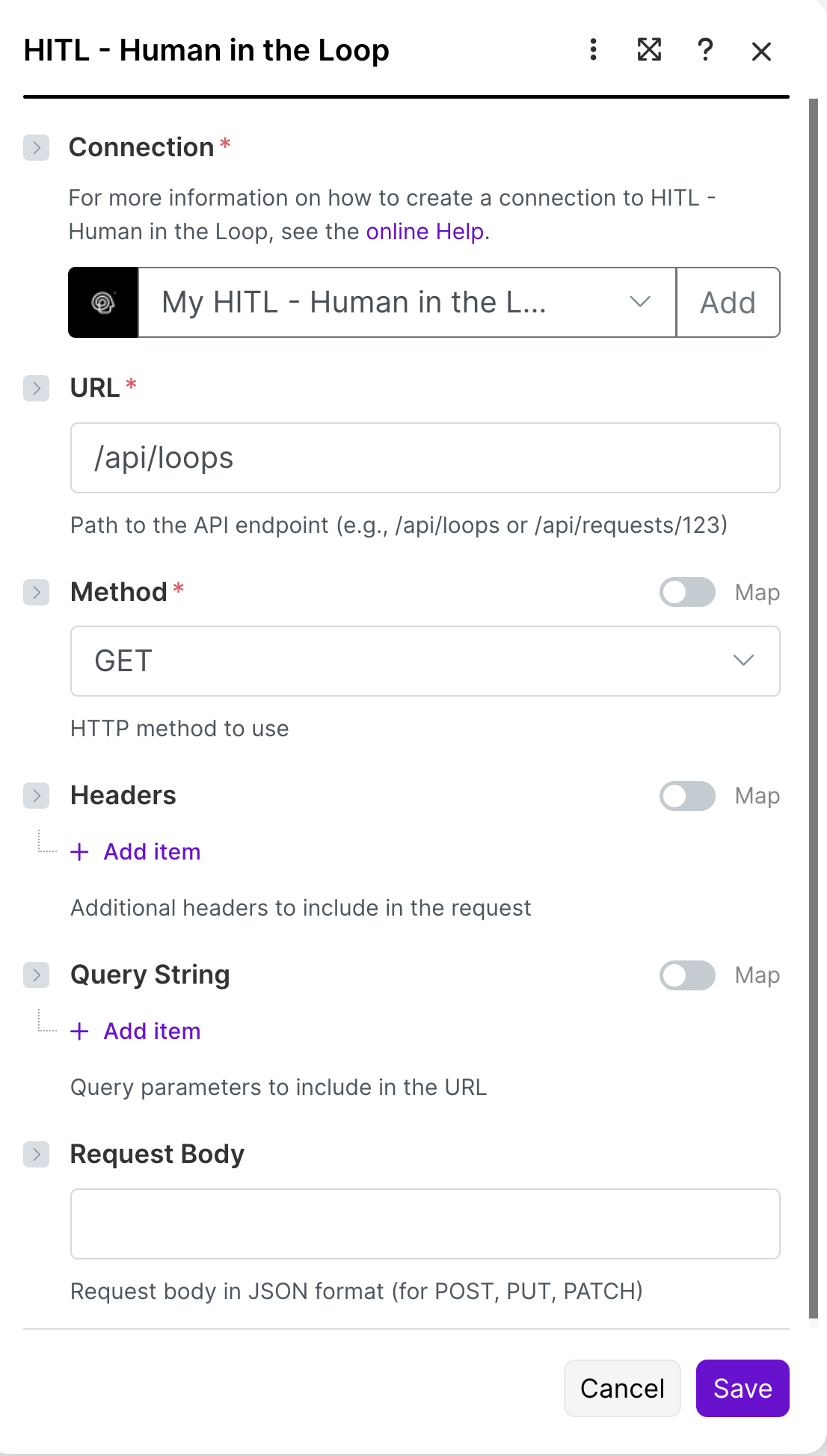 **Use this for:**
* Custom API operations
* Loop management (create, update, delete)
* Batch operations
* Advanced queries
**Example - List All Loops:**
```
URL: /api/loops
Method: GET
Headers: Authorization: Bearer {{API_KEY}}
```
**Example - Cancel Request:**
```
URL: /api/requests/{{request_id}}
Method: DELETE
Headers: Authorization: Bearer {{API_KEY}}
```
### Watch Responses Module (Webhook Trigger)
**Use this for:**
* Custom API operations
* Loop management (create, update, delete)
* Batch operations
* Advanced queries
**Example - List All Loops:**
```
URL: /api/loops
Method: GET
Headers: Authorization: Bearer {{API_KEY}}
```
**Example - Cancel Request:**
```
URL: /api/requests/{{request_id}}
Method: DELETE
Headers: Authorization: Bearer {{API_KEY}}
```
### Watch Responses Module (Webhook Trigger)
 **How it Works:**
Add "HITL.sh > Watch Responses" as your scenario trigger
Make generates a unique webhook URL for this scenario
When creating requests, include the webhook URL as callback\_url
Scenario automatically runs when reviewer completes the request
**Webhook Payload:**
```json theme={null}
{
"event": "request.completed",
"request_id": "65f1234567890abcdef12348",
"loop_id": "65f1234567890abcdef12345",
"status": "completed",
"response_data": "approve",
"response_by_user": {
"id": "65f1234567890abcdef12350",
"name": "Sarah Reviewer",
"email": "sarah@example.com"
},
"response_time_seconds": 127.5,
"timestamp": "2024-03-15T10:32:25Z"
}
```
## Supported Response Types
### Text Response
```json theme={null}
{
"response_type": "text",
"response_config": {
"placeholder": "Enter feedback...",
"min_length": 10,
"max_length": 1000,
"required": true
}
}
```
**Returns:** String value
### Single Select
```json theme={null}
{
"response_type": "single_select",
"response_config": {
"options": ["Approve", "Reject", "Revise"]
}
}
```
**Returns:** Single string value (e.g., "approve")
### Multi Select
```json theme={null}
{
"response_type": "multi_select",
"response_config": {
"options": ["Accuracy", "Tone", "Grammar"],
"max_selections": 3
}
}
```
**Returns:** Array of strings (e.g., \["accuracy", "grammar"])
### Rating
```json theme={null}
{
"response_type": "rating",
"response_config": {
"scale_min": 1,
"scale_max": 10,
"scale_step": 0.5
}
}
```
**Returns:** Number value (e.g., 7.5)
### Number
```json theme={null}
{
"response_type": "number",
"response_config": {
"min_value": 0,
"max_value": 1000,
"decimal_places": 2
}
}
```
**Returns:** Number value (e.g., 149.99)
### Boolean
```json theme={null}
{
"response_type": "boolean",
"response_config": {
"true_label": "Yes, Approved",
"false_label": "No, Rejected"
}
}
```
**Returns:** Boolean value (true/false)
## Example Scenarios
### Google Forms Approval Workflow
**Scenario Flow:**
1. **Trigger:** New Google Forms Response
2. **Filter:** Check if requires approval
3. **HITL Create Request:** Send for human review
4. **Router:** Route based on response
* Approved → Update Google Sheet, Send email
* Rejected → Archive response, Notify submitter
* Escalate → Create ticket, Notify manager
### Real-Time Content Moderation
**Scenario Flow (using Webhook):**
1. **Trigger:** HITL Watch Responses (Webhook)
2. **Switch:** Based on response\_data
* "approve" → Post to social media, Log to database
* "reject" → Send rejection notice, Archive content
* "flag" → Create moderation ticket, Alert team
### Customer Support Escalation
**Scenario Flow:**
1. **Trigger:** New Zendesk Ticket
2. **Filter:** Priority = High or Urgent
3. **HITL Create Request:** Route to support manager
4. **Wait for Response:** Poll status every 5 minutes
5. **Action:** Based on decision
* Assign to specialist team
* Escalate to executive
* Resolve with template
## Advanced Techniques
### Data Transformation
Map form data to HITL request format:
```javascript theme={null}
// Set multiple variables
{
"loop_id": "{{1.loop_id}}",
"request_text": formatString(
"Review submission from {name}\nEmail: {email}\nMessage: {message}",
{{1.name}},
{{1.email}},
{{1.message}}
),
"priority": {{1.amount}} > 1000 ? "high" : "medium"
}
```
### Conditional Routing
Use routers to handle different response types:
```
Router
├─ Path 1: response_data = "approve"
│ └─ Send approval email
│ └─ Update CRM
│ └─ Post to Slack
│
├─ Path 2: response_data = "reject"
│ └─ Send rejection notice
│ └─ Archive submission
│
└─ Path 3: response_data = "escalate"
└─ Create high-priority ticket
└─ Notify management
└─ Schedule follow-up
```
### Error Handling
Add error handlers to your scenarios:
Right-click any module → Add error handler
Choose action: Ignore, Resume, Commit, or Rollback
Send error notifications to your team
## Best Practices
Prefer Watch Responses over polling Get Status for better performance
Validate data before sending to HITL to prevent errors
Always add error handlers to critical modules
Run scenarios with test data before activating
## Troubleshooting
**Solution:**
* Verify API key is correct
* Check API key permissions
* Regenerate API key if needed
* Test connection with simple request
**Solution:**
* Verify JSON syntax is correct
* Match response\_config to response\_type
* Check required fields are present
* Review example configurations above
**Solution:**
* Verify webhook URL in callback\_url
* Check webhook is active in Make
* Test with manual webhook call
* Review Make scenario execution logs
**Solution:**
* Increase timeout\_seconds value
* Verify loop has active reviewers
* Check notification settings
* Consider using deferred processing
## Pricing & Operations
Each module execution counts as one operation. Using webhooks (Watch Responses) is more efficient than polling (Get Status) as it only triggers when there's actual data.
## Next Steps
Explore n8n for open-source automation
Learn about Zapier for simpler workflows
View complete API documentation
Join Discord for scenario templates and support
**How it Works:**
Add "HITL.sh > Watch Responses" as your scenario trigger
Make generates a unique webhook URL for this scenario
When creating requests, include the webhook URL as callback\_url
Scenario automatically runs when reviewer completes the request
**Webhook Payload:**
```json theme={null}
{
"event": "request.completed",
"request_id": "65f1234567890abcdef12348",
"loop_id": "65f1234567890abcdef12345",
"status": "completed",
"response_data": "approve",
"response_by_user": {
"id": "65f1234567890abcdef12350",
"name": "Sarah Reviewer",
"email": "sarah@example.com"
},
"response_time_seconds": 127.5,
"timestamp": "2024-03-15T10:32:25Z"
}
```
## Supported Response Types
### Text Response
```json theme={null}
{
"response_type": "text",
"response_config": {
"placeholder": "Enter feedback...",
"min_length": 10,
"max_length": 1000,
"required": true
}
}
```
**Returns:** String value
### Single Select
```json theme={null}
{
"response_type": "single_select",
"response_config": {
"options": ["Approve", "Reject", "Revise"]
}
}
```
**Returns:** Single string value (e.g., "approve")
### Multi Select
```json theme={null}
{
"response_type": "multi_select",
"response_config": {
"options": ["Accuracy", "Tone", "Grammar"],
"max_selections": 3
}
}
```
**Returns:** Array of strings (e.g., \["accuracy", "grammar"])
### Rating
```json theme={null}
{
"response_type": "rating",
"response_config": {
"scale_min": 1,
"scale_max": 10,
"scale_step": 0.5
}
}
```
**Returns:** Number value (e.g., 7.5)
### Number
```json theme={null}
{
"response_type": "number",
"response_config": {
"min_value": 0,
"max_value": 1000,
"decimal_places": 2
}
}
```
**Returns:** Number value (e.g., 149.99)
### Boolean
```json theme={null}
{
"response_type": "boolean",
"response_config": {
"true_label": "Yes, Approved",
"false_label": "No, Rejected"
}
}
```
**Returns:** Boolean value (true/false)
## Example Scenarios
### Google Forms Approval Workflow
**Scenario Flow:**
1. **Trigger:** New Google Forms Response
2. **Filter:** Check if requires approval
3. **HITL Create Request:** Send for human review
4. **Router:** Route based on response
* Approved → Update Google Sheet, Send email
* Rejected → Archive response, Notify submitter
* Escalate → Create ticket, Notify manager
### Real-Time Content Moderation
**Scenario Flow (using Webhook):**
1. **Trigger:** HITL Watch Responses (Webhook)
2. **Switch:** Based on response\_data
* "approve" → Post to social media, Log to database
* "reject" → Send rejection notice, Archive content
* "flag" → Create moderation ticket, Alert team
### Customer Support Escalation
**Scenario Flow:**
1. **Trigger:** New Zendesk Ticket
2. **Filter:** Priority = High or Urgent
3. **HITL Create Request:** Route to support manager
4. **Wait for Response:** Poll status every 5 minutes
5. **Action:** Based on decision
* Assign to specialist team
* Escalate to executive
* Resolve with template
## Advanced Techniques
### Data Transformation
Map form data to HITL request format:
```javascript theme={null}
// Set multiple variables
{
"loop_id": "{{1.loop_id}}",
"request_text": formatString(
"Review submission from {name}\nEmail: {email}\nMessage: {message}",
{{1.name}},
{{1.email}},
{{1.message}}
),
"priority": {{1.amount}} > 1000 ? "high" : "medium"
}
```
### Conditional Routing
Use routers to handle different response types:
```
Router
├─ Path 1: response_data = "approve"
│ └─ Send approval email
│ └─ Update CRM
│ └─ Post to Slack
│
├─ Path 2: response_data = "reject"
│ └─ Send rejection notice
│ └─ Archive submission
│
└─ Path 3: response_data = "escalate"
└─ Create high-priority ticket
└─ Notify management
└─ Schedule follow-up
```
### Error Handling
Add error handlers to your scenarios:
Right-click any module → Add error handler
Choose action: Ignore, Resume, Commit, or Rollback
Send error notifications to your team
## Best Practices
Prefer Watch Responses over polling Get Status for better performance
Validate data before sending to HITL to prevent errors
Always add error handlers to critical modules
Run scenarios with test data before activating
## Troubleshooting
**Solution:**
* Verify API key is correct
* Check API key permissions
* Regenerate API key if needed
* Test connection with simple request
**Solution:**
* Verify JSON syntax is correct
* Match response\_config to response\_type
* Check required fields are present
* Review example configurations above
**Solution:**
* Verify webhook URL in callback\_url
* Check webhook is active in Make
* Test with manual webhook call
* Review Make scenario execution logs
**Solution:**
* Increase timeout\_seconds value
* Verify loop has active reviewers
* Check notification settings
* Consider using deferred processing
## Pricing & Operations
Each module execution counts as one operation. Using webhooks (Watch Responses) is more efficient than polling (Get Status) as it only triggers when there's actual data.
## Next Steps
Explore n8n for open-source automation
Learn about Zapier for simpler workflows
View complete API documentation
Join Discord for scenario templates and support